What this module is for
A till for your counter: cash or card checkout, receipt printed or sent by email, Z close and stock shared with your online shop.
Getting started, step by step
- Step 1
Turn the module on
In Eazyclick OS, open Settings then Eazyclick subscription, Available modules tab, and click “Request activation” next to Point of sale, or ask your project manager. During the trial, the list is in My plan, under “Add other modules”: a module marked “With Spark” opens when you move to Spark. Once active, the module shows up in the menu, with a “?” at the top of the screen that brings you back to this page.
- Step 2
Create your register
In Point of sale, click “New register” and give it a name (e.g. Counter). The Registers tab lists them all and links each one to its shop if you have several.
- Step 3
Open a session and take payments
Open the session with your opening float. Tap or scan the products from your Shop, then choose Cash, Card or Other. The receipt is printed or sent by email.
- Step 4
Close the day
At the end of the day, click “Close the till” and count your cash: the Z report sums up sales, payment methods and cash differences. Closing is final. The Sessions tab keeps every report.
What it looks like
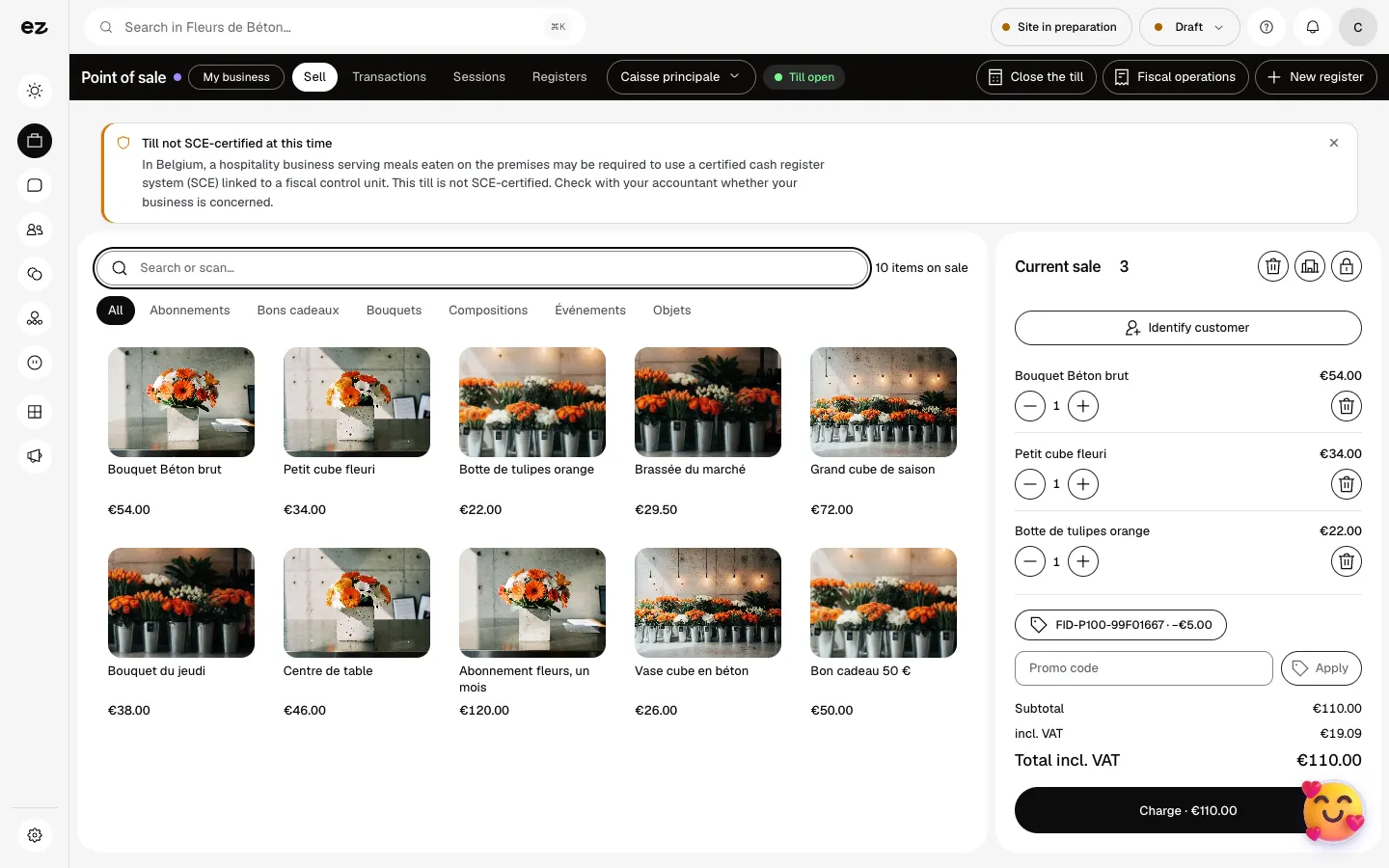
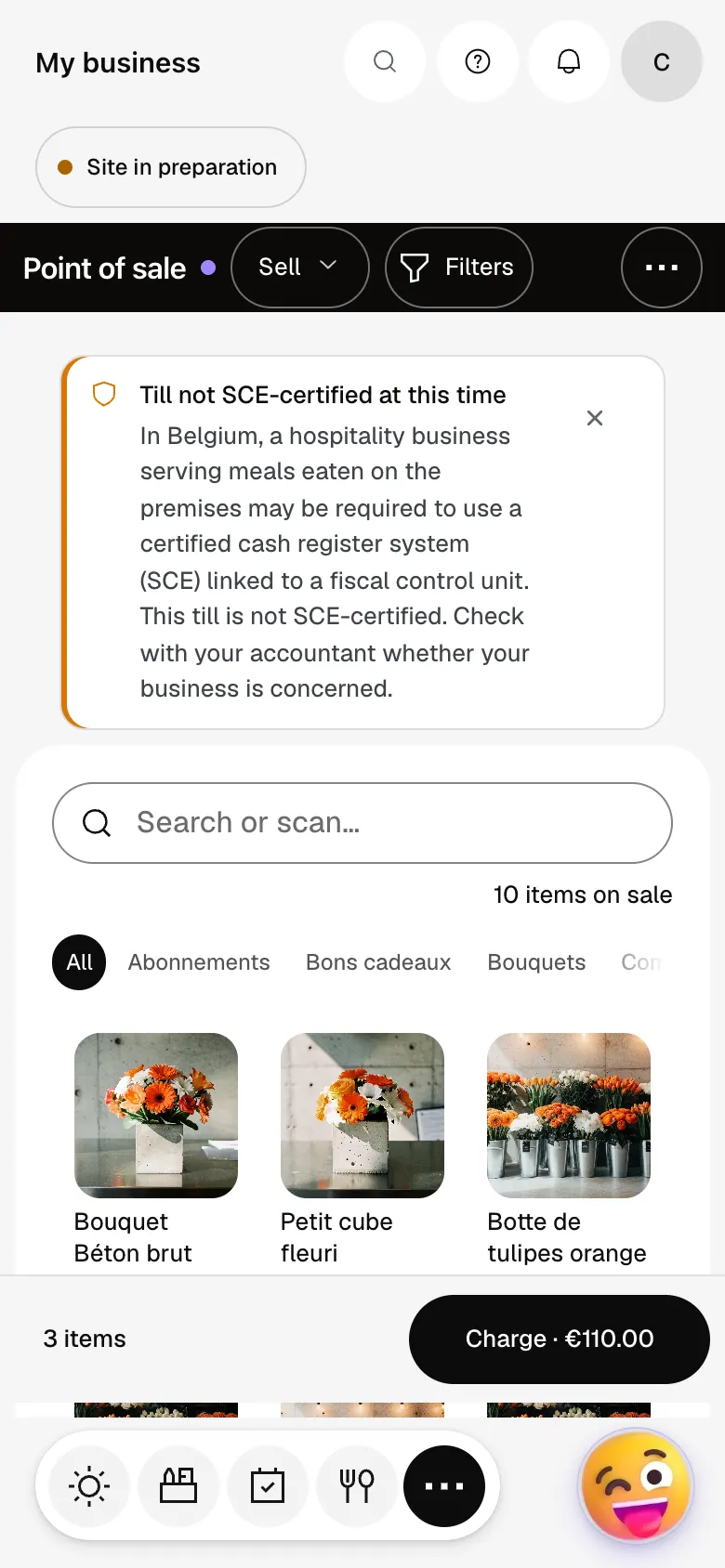
The module in one minute
Transcript
A sale in a few taps: your items on the left, the ticket on the right. Tap an item, or scan it: it goes straight onto the ticket. On the ticket, change a quantity or remove a line. Identify the customer: the sale goes onto their record. The total is there. Take payment, by cash or card. In the evening, sessions show what was taken and how many tickets. Several sales points? Each has its own register, under the same account. A question? The “?” at the top of every screen opens this documentation.
What hardware do I need?
A tablet or computer with a browser is enough; a barcode reader and a receipt printer are optional. The payment terminal is not linked to the till: the customer pays on your terminal, then you confirm the sale as Card.
Do I need the Shop?
Yes, the till sells the Shop’s products and stock: the E-commerce module must be active.
What are fiscal operations for?
The “Fiscal operations” button gathers the fiscal calendar, fiscal closing, correcting a receipt, the training receipt and recovery after an incident.
Is the till certified?
It is not SCE-certified at this time. In Belgium, a hospitality business serving meals eaten on the premises may be required to use a certified till: check with your accountant. The till screen reminds you of this. The till is not offered in France for now.
How much does Point of sale cost?
€59 excl. VAT per month with a 12-month commitment (€54 over 24 months, €74 with no commitment), on top of your plan and the E-commerce module it requires. Each extra location adds €29 per month for its till. In a trade pack, it is part of the pack’s fixed price. During the 14-day trial, it opens if your pack contains it; otherwise it comes with Spark. Taking payments uses no credits.


