What this module is for
Your restaurant menu online, on your website and by QR code: dishes, prices and the 14 allergens updated in one click.
Getting started, step by step
- Step 1
Turn the module on
In Eazyclick OS, open Settings then Eazyclick subscription, Available modules tab, and click “Request activation” next to Menus, or ask your project manager. During the trial, the list is in My plan, under “Add other modules”: a module marked “With Spark” opens when you move to Spark. Once active, the module shows up in the menu, with a “?” at the top of the screen that brings you back to this page.
- Step 2
Create the menu and its dishes
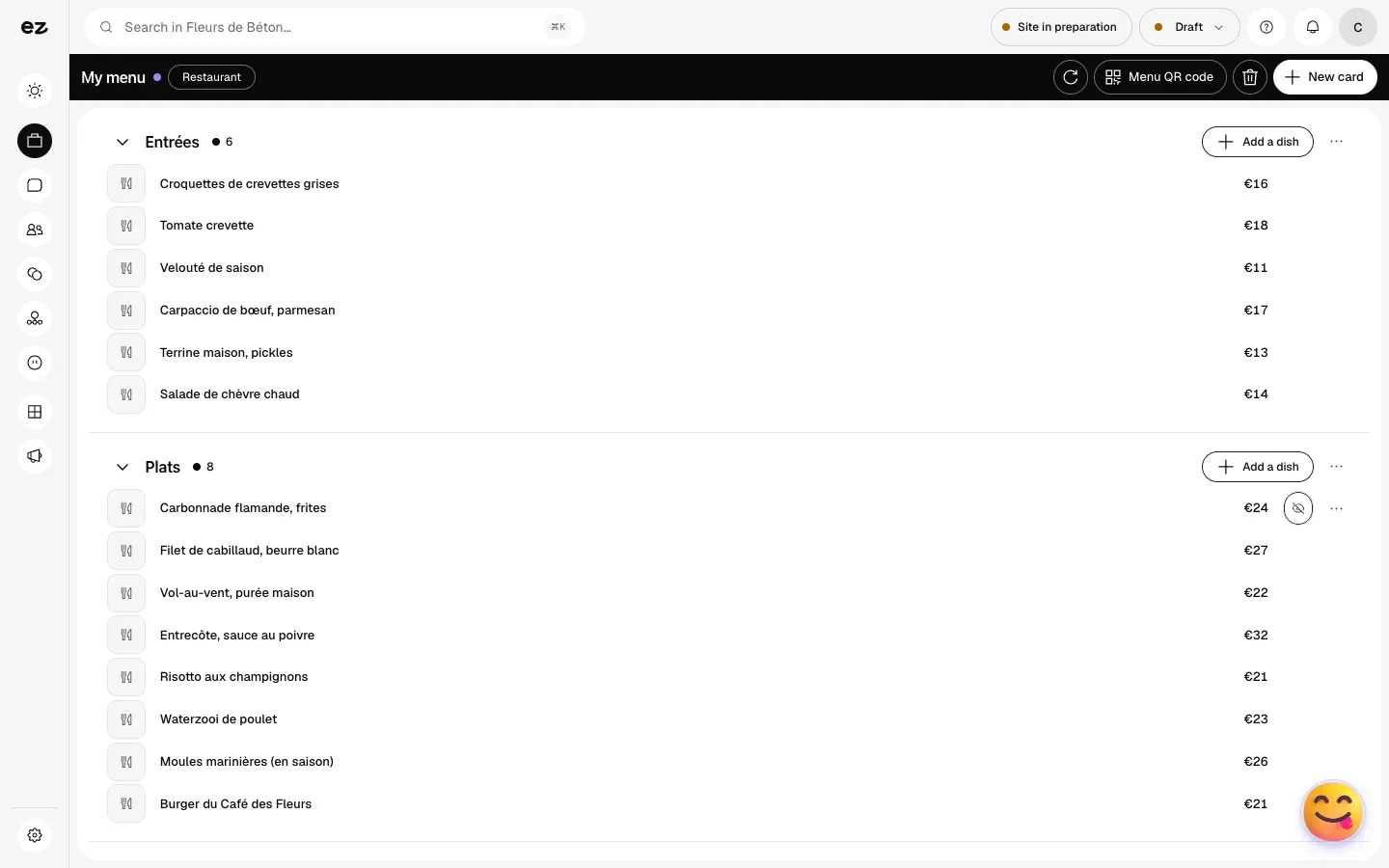
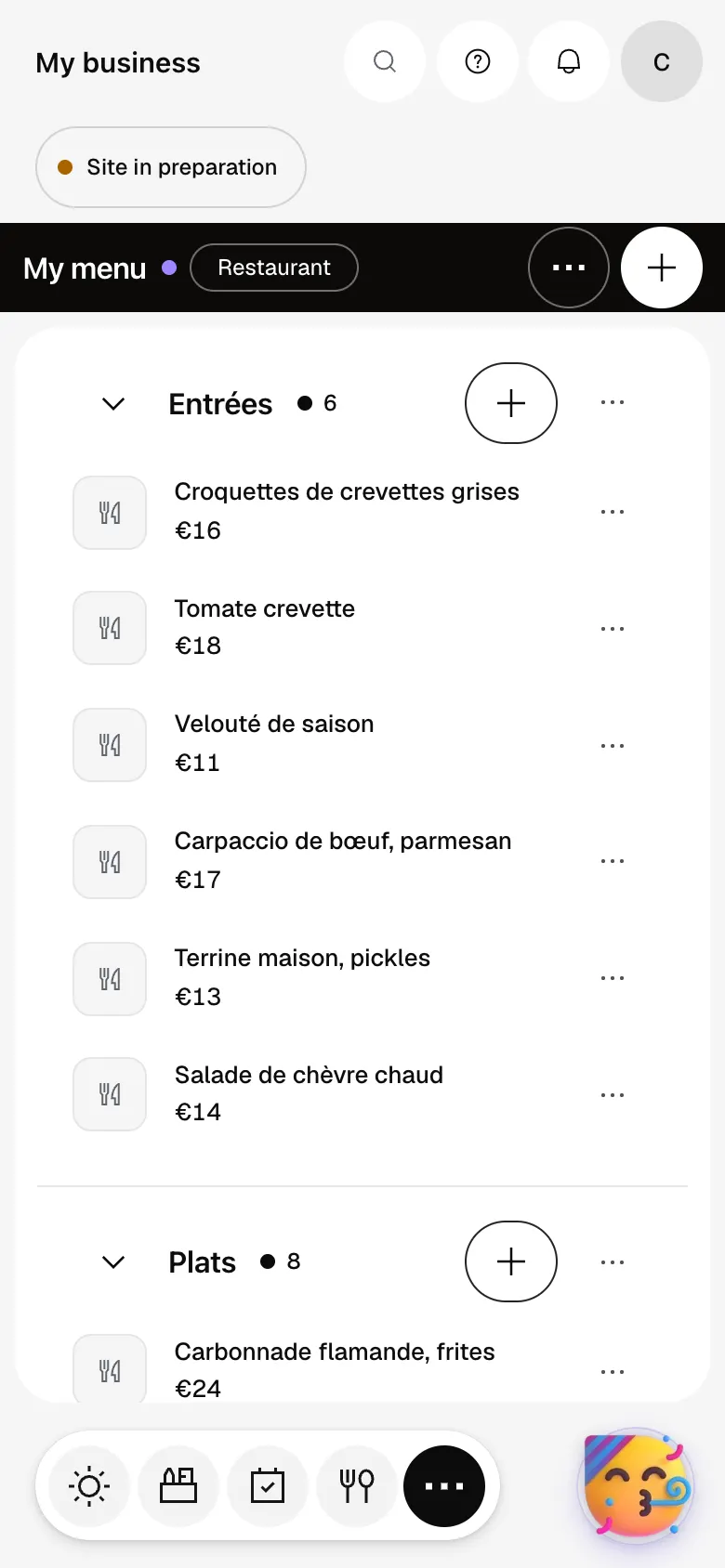
In My menu, click “New card” (lunch, dinner, drinks), then “Add a category” and “Add a dish”: name, description, price, extras and time slot. Sample dishes may be there at the start: they disappear as soon as you add your first real dish.
- Step 3
Tag allergens
In each dish, tick its allergens and diets: they show on the online menu.
- Step 4
Publish and share
The menu shows on your website as soon as it is online. The “Menu QR code” button then gives you the code to print for your tables (“Download SVG”).
What it looks like
The module in one minute
Transcript
Your menu, sorted by category, with the price of every dish. A new dish? Add it to its category: a name, a price, and it is ready. Tap a dish to edit it. Price changed? It is done in a moment. Sold out tonight? Hide the dish, and bring it back whenever you like. Each dish keeps its description and allergens, in your customers’ language. The menu’s QR code: print it, and customers read the menu on their phones. A lunch menu, a dinner menu? Create as many as you need. A question? The “?” at the top of every screen opens this documentation.
Can I hide a sold-out dish?
Yes, with “Hide (out of stock)”: it leaves the online menu until you click “Show again”.
Can customers order from the menu?
Yes, with the Table ordering module: the table’s QR code opens the menu and the order goes to the kitchen.
How much does Menus cost?
This is a standard module: included in Spark’s 4 places, then at most €24 excl. VAT per month with a 12-month commitment, less as you add modules; unlimited in Boost. During the 14-day trial, it opens if your trade pack contains it (restaurant, brasserie, bar…); otherwise it comes with Spark. Keeping your menu up to date uses no credits.


