What this module is for
Your site’s member list in Eazyclick OS: invitations, statuses, access granted to each member and a direct link to their CRM record. Your members sign in on your published website, with no password, and find their personal space there.
Getting started, step by step
- Step 1
Turn the module on
In Eazyclick OS, open Settings then Eazyclick subscription, Available modules tab, and click “Request activation” next to Members area, or ask your project manager. During the trial, the list is in My plan, under “Add other modules”: a module marked “With Spark” opens when you move to Spark. Once active, the module shows up in the menu, with a “?” at the top of the screen that brings you back to this page.
- Step 2
Invite your members
In Members, click “Invite a member” and enter one or more addresses, 20 at most per send. Each one gets its own passwordless login link, valid for 15 minutes; the member shows as “Pending” and a contact is created in the CRM.
- Step 3
Follow each member
Filter by status (Active, Pending, Suspended) or search by email or name. A row’s menu lets you suspend, reactivate or resend the invitation; “CRM record” opens the linked contact.
- Step 4
Grant access
Open a member: “Offer access” gives them one of your courses, if the Courses module is on. The Grants column counts their access, and “Export the list” downloads your members.
What it looks like
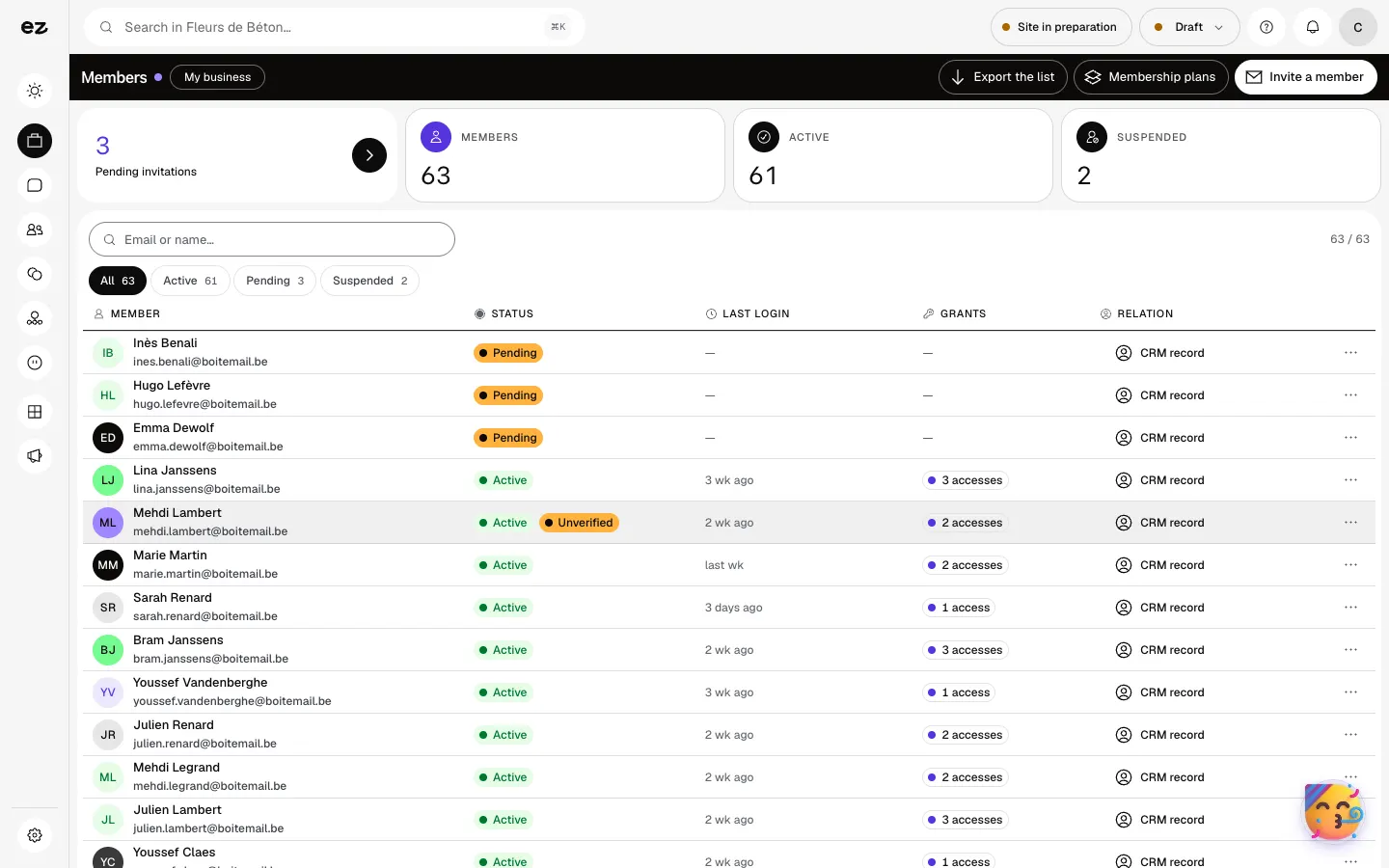
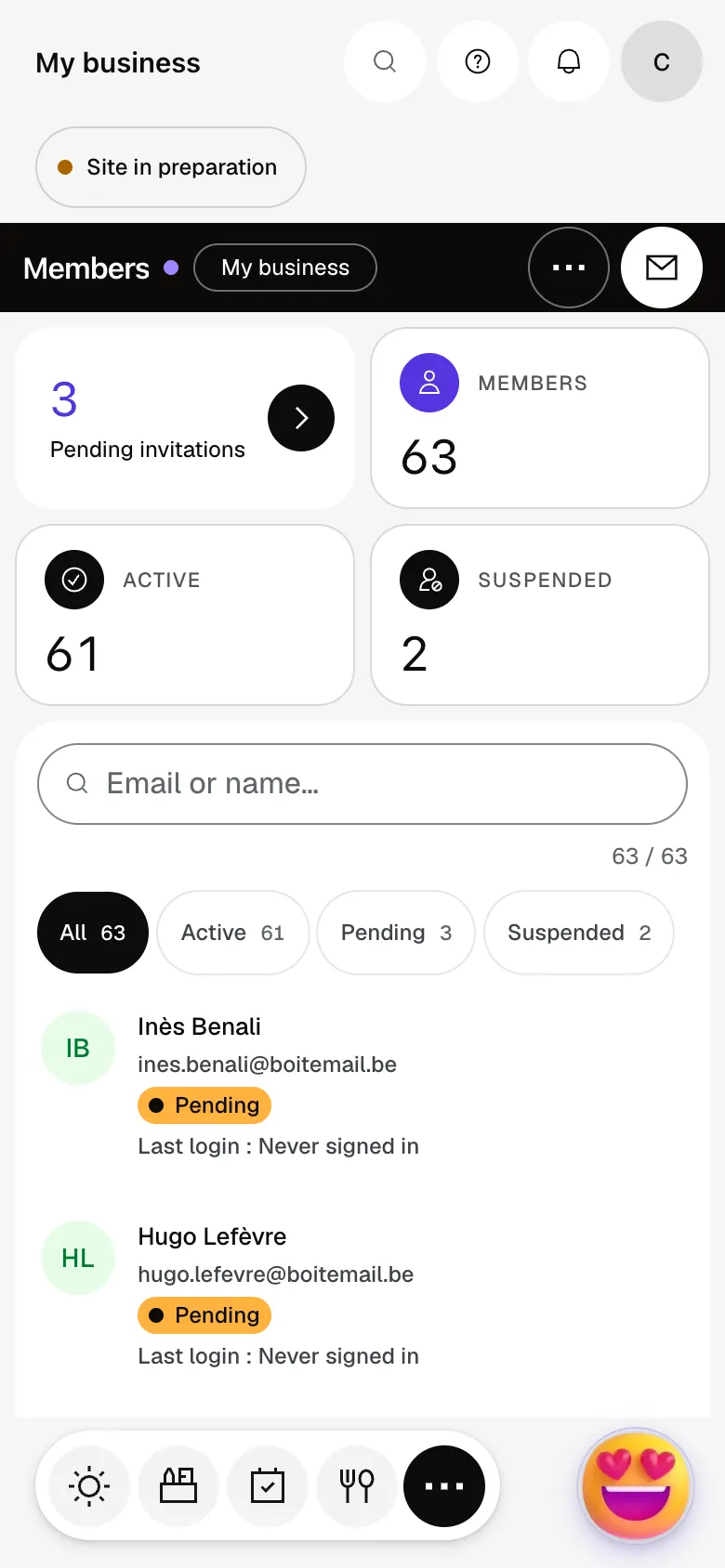
The module in one minute
Transcript
Every member of your private area: active, pending and suspended. Unanswered invitations are counted here, ready to be sent again. Find any member by name or email. The Rights column shows what each member can access. Each member is linked to their CRM record, with nothing to enter twice. In the CRM you find the same person, with their full history. The invitation sends a sign-in link: wait until the members area is open on your site. And export the full list whenever you need it. The “?” at the top of every screen opens the module’s documentation.
How do my members sign in on my website?
On your published website, with the sign-in link they receive by email, with no password. The invitation link opens their personal space; if it has expired, they ask for a new one on the sign-in page. You grant course access by hand with “Offer access”, or they buy it on the course page, if a Mollie or Stripe account is connected to E-commerce.
Can fees be paid online?
Not yet. Plans and member follow-up are prepared in Donations & memberships, where an active membership gives member access, but signing up from the website isn’t available.
Can I try it during the free trial?
Yes: in Settings, Eazyclick subscription, My plan tab, turn on Members area under “Your trial modules”. It opens right away, until the trial ends. Spark includes four standard modules; beyond that, the price per module falls as you add more. This module uses no credits.
How much does Members area cost?
The price of Members area is shown on the module page and on the Pricing page. Eazyclick subscription also shows what it adds to your subscription before you request it.


