What this module is for
Your customers’ WhatsApp Business conversations arrive in an inbox the team shares. Each conversation is assigned to someone, followed until it is done and stays linked to the CRM contact.
Getting started, step by step
- Step 1
Turn the module on
In Eazyclick OS, open Settings then Eazyclick subscription, Available modules tab, and click “Request activation” next to WhatsApp messaging, or ask your project manager. During the trial, the list is in My plan, under “Add other modules”: a module marked “With Spark” opens when you move to Spark. Once active, the module shows up in the menu, with a “?” at the top of the screen that brings you back to this page.
- Step 2
Connect your WhatsApp Business number
The connection is done with your project manager: you sign in with the company’s Meta account and pick the number. Conversations then arrive under Messages then WhatsApp.
- Step 3
Reply within the 24 h window
After a customer’s message, you have 24 hours to reply freely. After that, only a template approved by WhatsApp can be sent: pick it below the conversation.
- Step 4
Reply as a team
Assign a conversation to a colleague: it lands in their “Mine” view. An internal note stays visible to the team only, and “Done” closes the conversation.
- Step 5
Find the customer
The conversation stays linked to the CRM contact: in its details, “View in Contacts” opens their record.
What it looks like
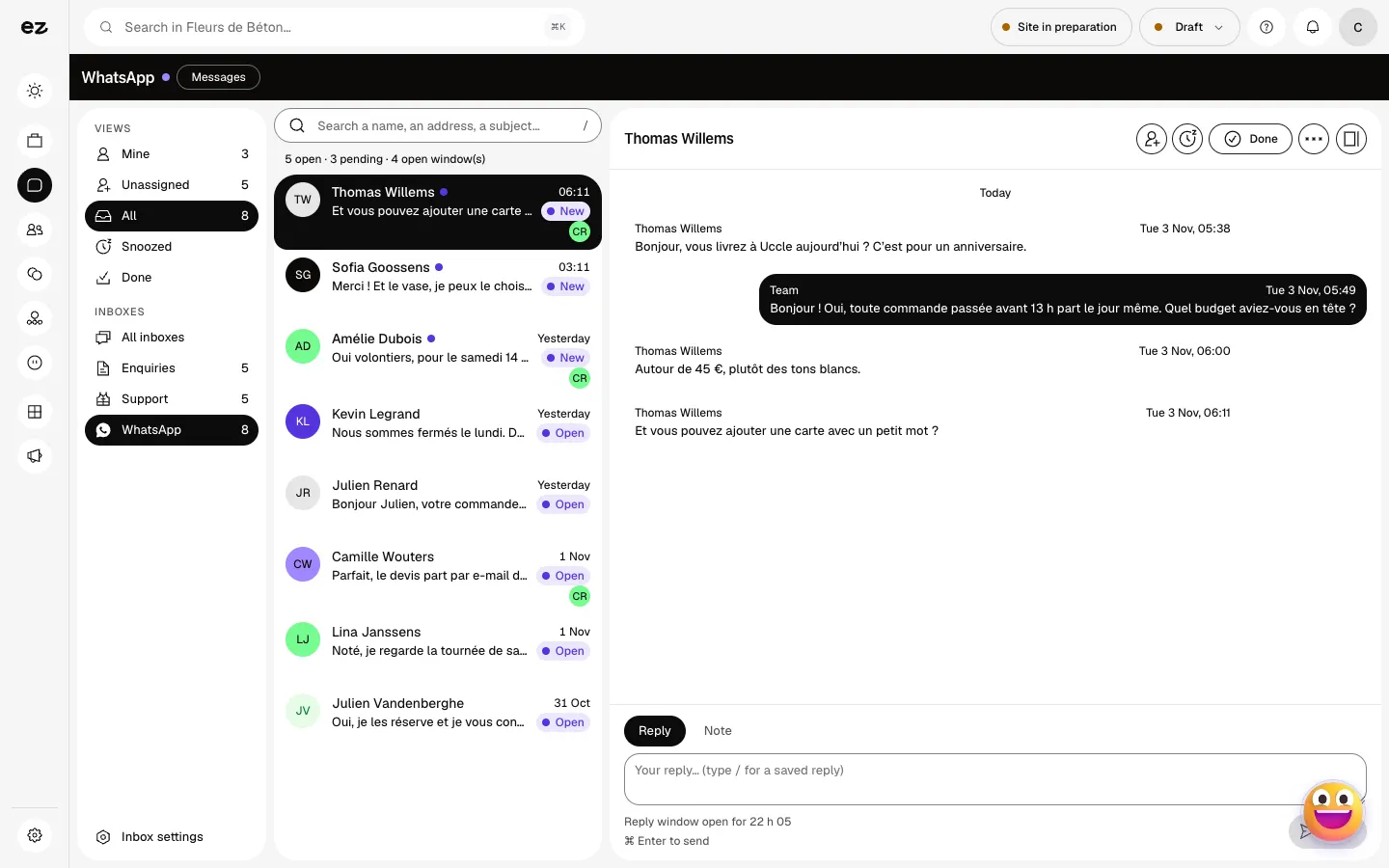
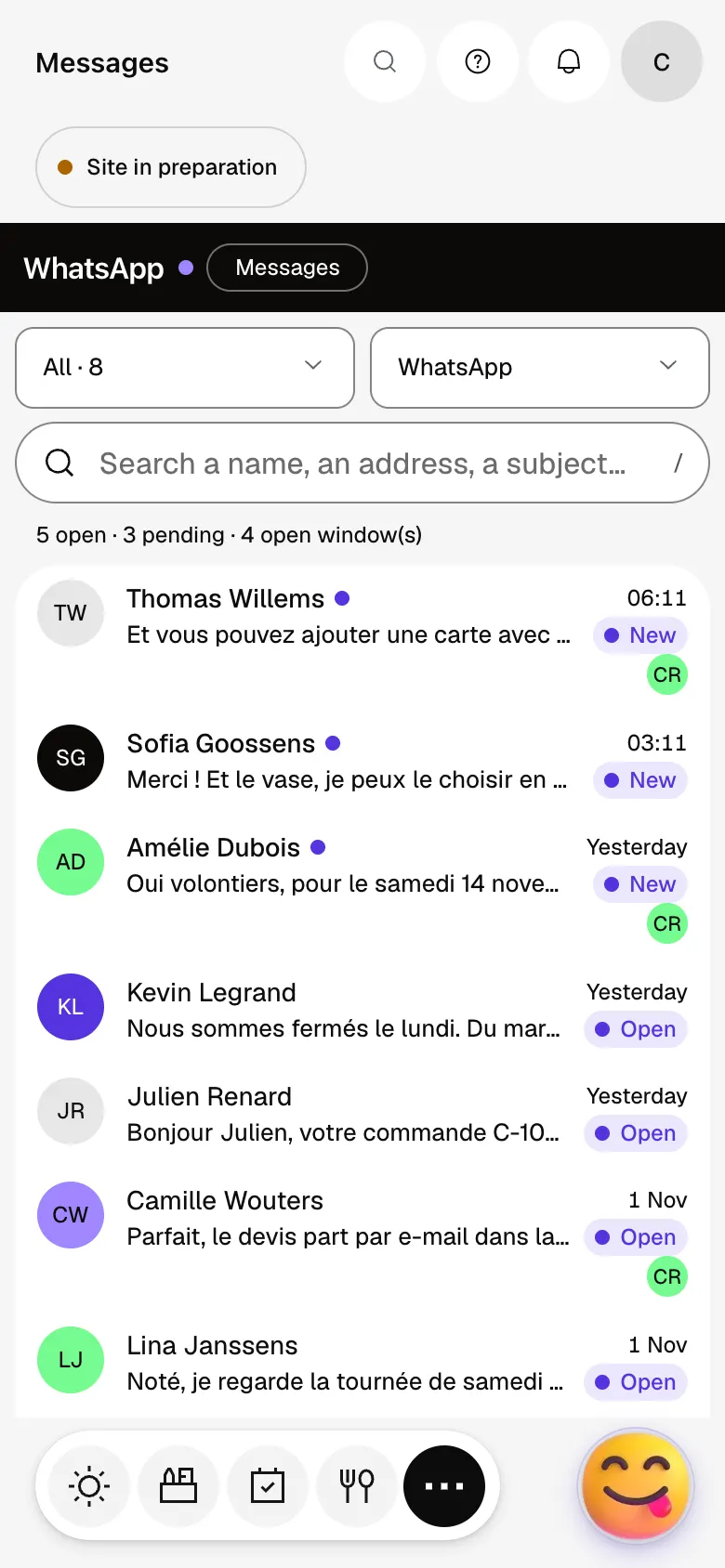
The module in one minute
Transcript
Your customers’ WhatsApp messages land here, in an inbox shared by the whole team. Each customer’s latest message reads in the list, and new ones stand out. Open a conversation: the whole exchange with the customer appears on the right. Reply freely while the 24-hour window is open: the time left is shown. Assign the conversation to a colleague: everyone sees their own work under “Mine”. Window closed: you reach the customer again with a WhatsApp-approved template. Internal notes stay between you: the customer never receives them. The “?” at the top of every screen opens the module’s documentation.
Do I need a WhatsApp Business account?
Yes, the module plugs into WhatsApp Business (through Meta). Your project manager helps you connect it and set one up if you don’t have one.
Are messages included in the price?
No: conversations are billed by Meta on your WhatsApp Business account, on top of the module.
Can I send appointment reminders over WhatsApp?
Yes, together with the appointments module: turn on “Also via WhatsApp” in its reminders. The reminder goes out on top of the email, provided there is an approved reminder template and the customer’s number is known.
Can I try it during the 14 days?
Only if it is part of the core of your trade’s pack. It cannot be added on its own: otherwise it stays marked “With Spark” in the list of modules.
How much does WhatsApp messaging cost?
The price of WhatsApp messaging is shown on the module page and on the Pricing page. Eazyclick subscription also shows what it adds to your subscription before you request it.


