What this module is for
Every customer request becomes a numbered ticket, assigned to someone on the team, with its priority, response target and the whole exchange.
Getting started, step by step
- Step 1
Turn the module on
In Eazyclick OS, open Settings then Eazyclick subscription, Available modules tab, and click “Request activation” next to Support & tickets, or ask your project manager. During the trial, the list is in My plan, under “Add other modules”: a module marked “With Spark” opens when you move to Spark. Once active, the module shows up in the menu, with a “?” at the top of the screen that brings you back to this page.
- Step 2
Create a ticket
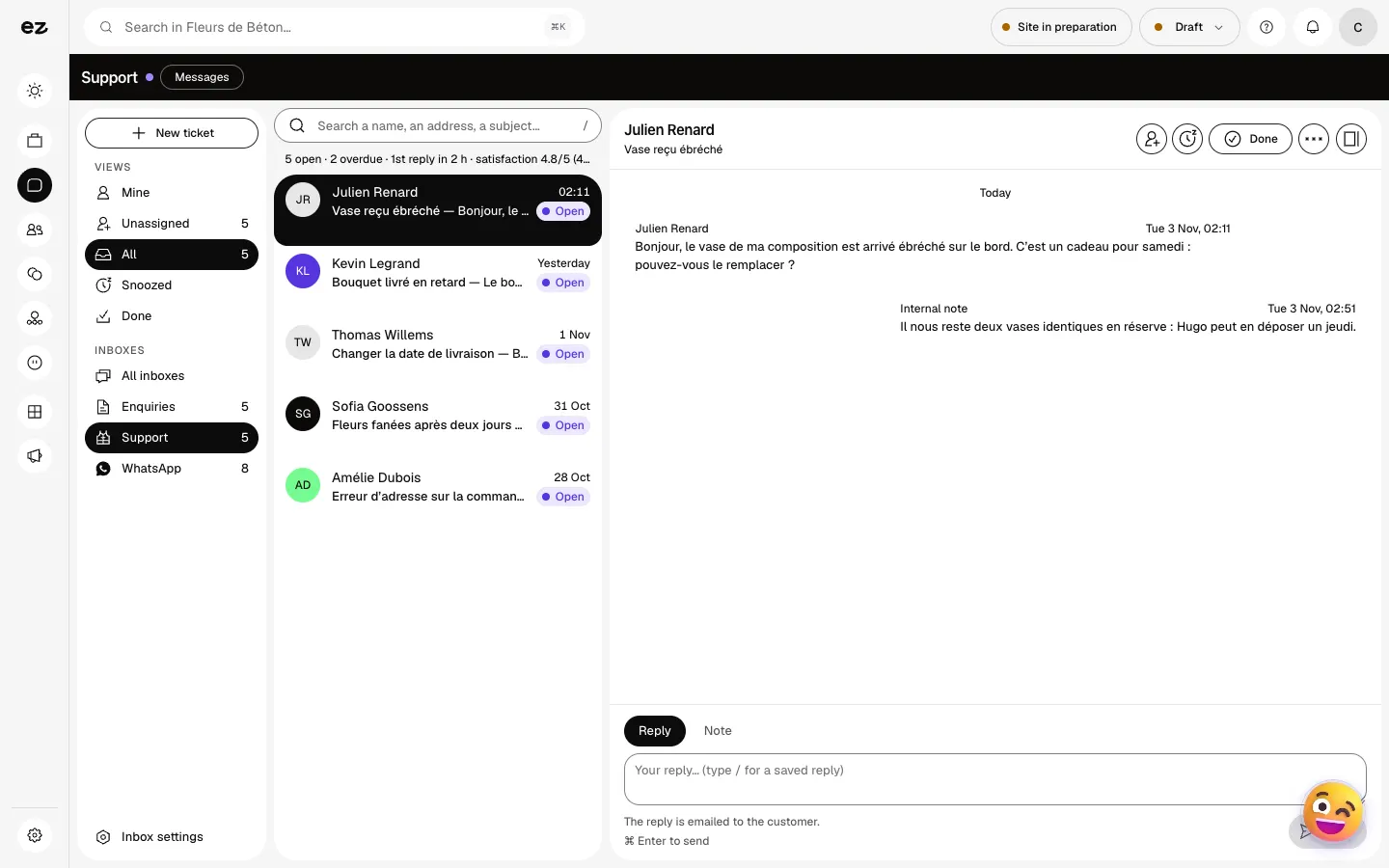
Open Messages then Customer support and click “New ticket”: subject, priority, customer name, email or phone, message. The ticket gets a number.
- Step 3
Assign and track response targets
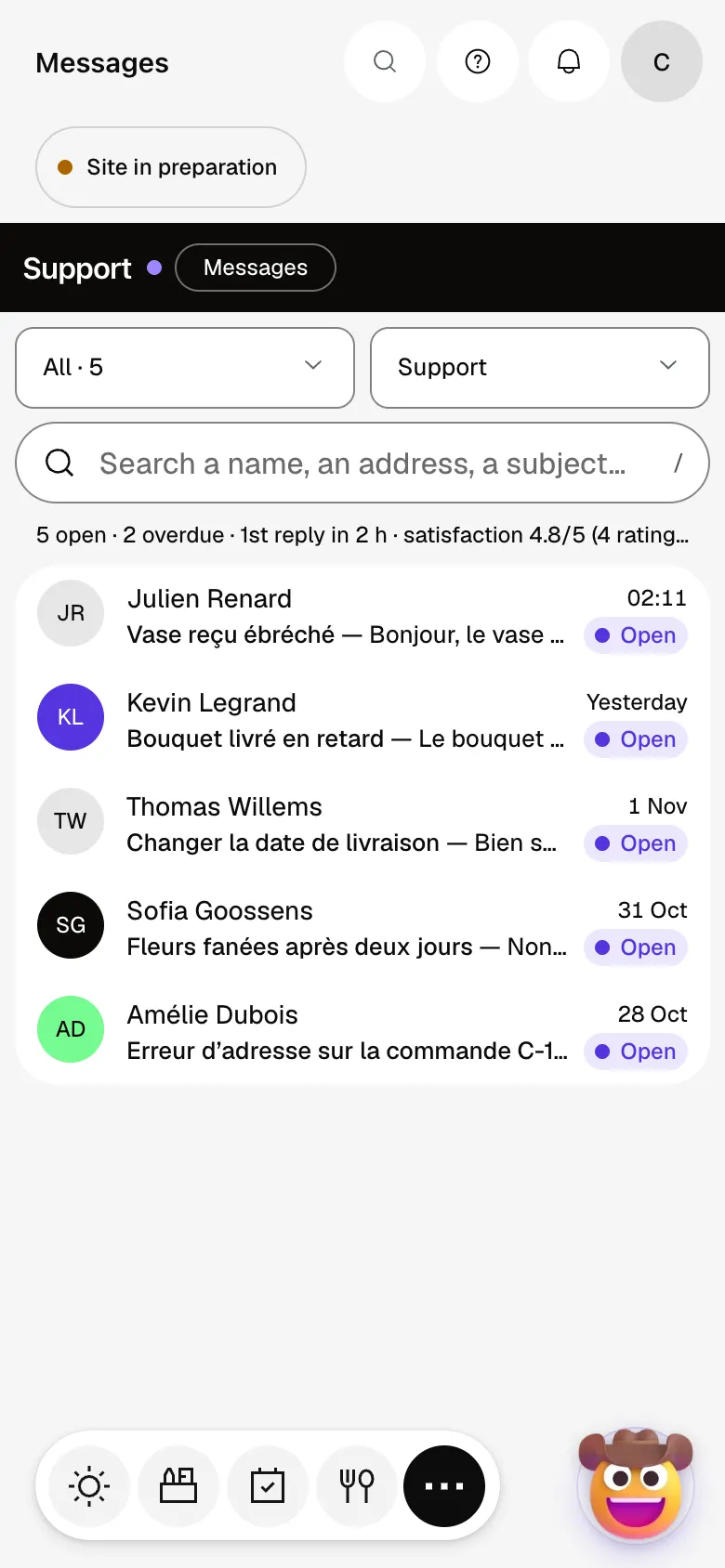
Assign the ticket and set its priority. The first-reply target of each priority is set in “Support targets”, under “Inbox settings”. Past that, the ticket turns “Overdue” and the counter above the list shows it.
- Step 4
Reply
Reply from the ticket: the customer gets the answer by email, with its number. An internal note stays visible to the team only. Type / to insert a saved reply.
- Step 5
Close and measure satisfaction
“Done” closes the ticket and the customer is invited by email to rate the service, from 1 to 5. The average shows above the list, next to overdue tickets.
What it looks like
The module in one minute
Transcript
Every customer request becomes a ticket: nothing gets lost, nothing waits unnoticed. At the top of the list: open tickets, overdue ones and how satisfied your customers are. Open a ticket: the customer’s request appears on the right, with the whole exchange. Internal notes: your team talks inside the ticket, the customer never sees them. Reply here: your answer goes to the customer by email, and type “/” for a saved reply. Assign the ticket to a colleague, or snooze it while it waits for something. WhatsApp lands in the same inbox: one place for every request. Once solved, the ticket moves to finished conversations, and your list stays clean. The “?” at the top of every screen opens the module’s documentation.
Can the customer see their ticket’s status?
They get an email with every reply, with the ticket number to quote.
Can a ticket move from one colleague to another?
Yes: change the assignee. The whole exchange follows, nothing has to be asked again.
Can I try it during the 14 days?
No. During the trial, Support & tickets stays marked “With Spark” in the list of modules. It opens with Spark, where it takes one of the module places.
How much does Support & tickets cost?
The price of Support & tickets is shown on the module page and on the Pricing page. Eazyclick subscription also shows what it adds to your subscription before you request it.


