What this module is for
Your rental fleet in Eazyclick OS: daily or half-day rates, tracked units, recorded deposits and tracked returns, with no double booking.
Getting started, step by step
- Step 1
Turn the module on
In Eazyclick OS, open Settings then Eazyclick subscription, Available modules tab, and click “Request activation” next to Rentals, or ask your project manager. During the trial, the list is in My plan, under “Add other modules”: a module marked “With Spark” opens when you move to Spark. Once active, the module shows up in the menu, with a “?” at the top of the screen that brings you back to this page.
- Step 2
Add your items
In the Rental menu, click “New item”: name, granularity (day or half-day), price per period, deposit, number of units and minimum duration.
- Step 3
Record a rental
In the Rentals tab, “Counter rental” books a unit for a customer and dates. It is no longer free for that period.
- Step 4
Check and close dates
The Availability tab checks whether an item is free on those dates. For maintenance or holidays, a new closure blocks one item or the whole fleet.
- Step 5
Follow returns and deposits
Change the status on the line: Confirmed, Ongoing, Returned. On return, “Release deposit” marks it as released.
What it looks like
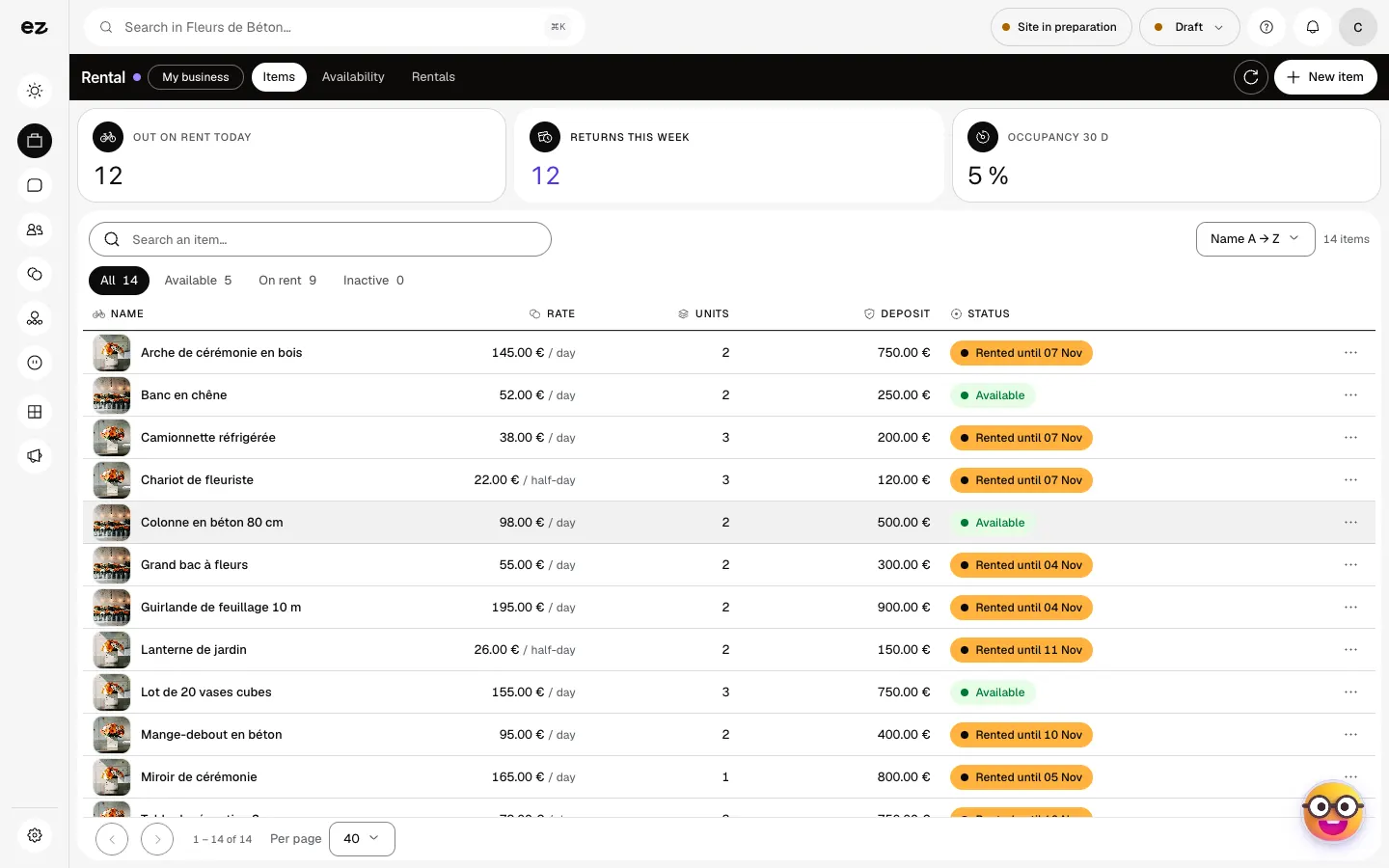
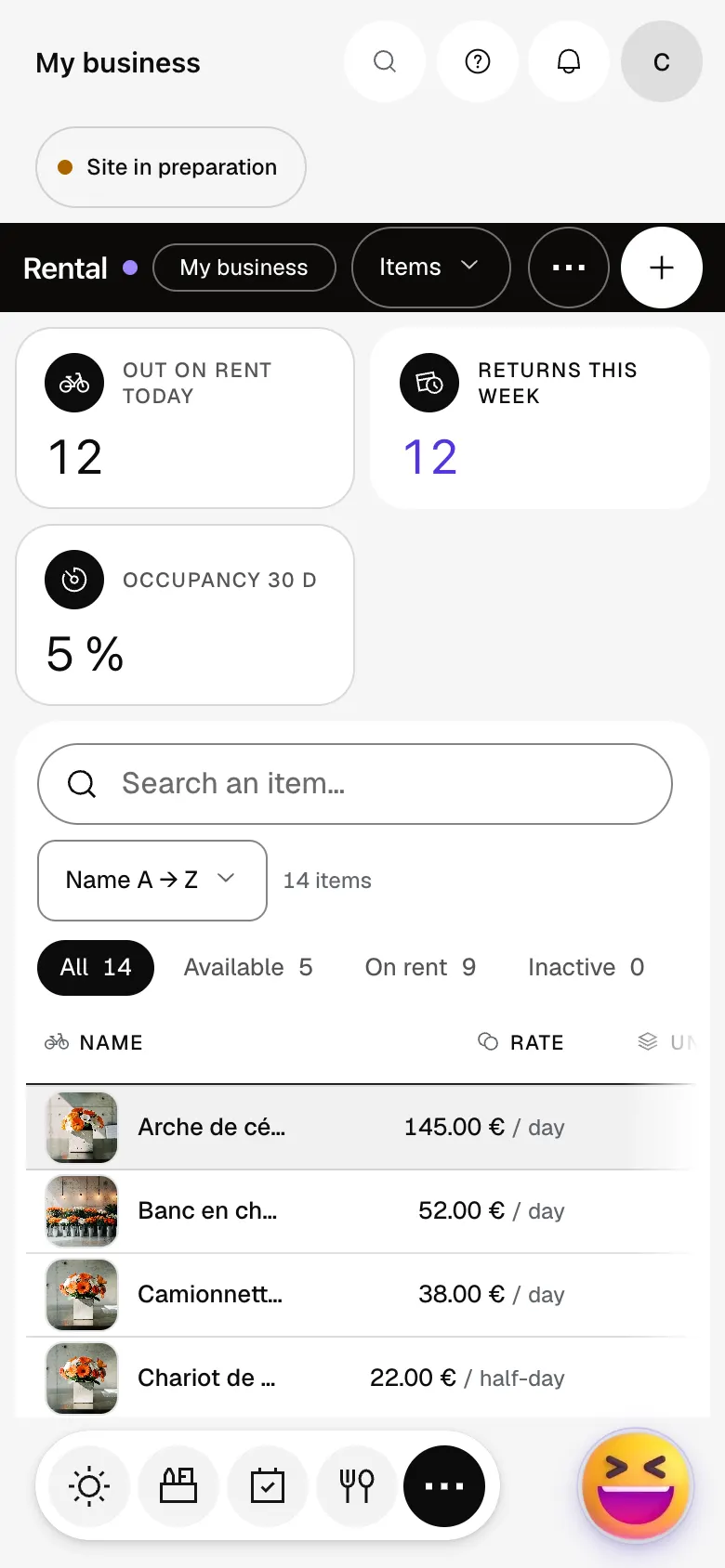
The module in one minute
Transcript
Everything you rent out, in one place: what is out, what is free. Each item has its rate, its number of units and its deposit. Current and upcoming rentals, with the period, the customer and the total. Change the status right on the line: confirmed, ongoing, returned. This week’s returns are counted apart: this tile opens the list. A customer calls? Check at once whether an item is free on those dates. Maintenance or holidays: close a period and nobody can book those dates. The “?” at the top of every screen opens the module’s documentation.
Can an item be rented twice?
No: a rented unit can’t be taken for the same dates, even if two people book it at the same moment.
Can my customers rent online on my website?
Not for now. They write through your website’s forms or call you, and you record the rental with “Counter rental”.
Is the deposit pre-authorised on the customer’s card?
No, the module records its amount and state (Deposit held, Deposit released); you handle it yourself. The automatic deposit hold and signed rental contract are marked PRO: talk to your project manager.
Can I add it during my free trial?
Yes. If it isn’t in your pack, turn it on in Eazyclick subscription, My plan, Your trial modules: it opens right away, until the end of the trial. To keep it, it must be in your Spark order. The module itself uses no credits.
How much does Rentals cost?
The price of Rentals is shown on the module page and on the Pricing page. Eazyclick subscription also shows what it adds to your subscription before you request it.


