What this module is for
Your properties, mandates, enquiries and viewings in one place, and your properties published on your website. Enter them here or bring them in from Whise; every enquiry also lands in your CRM.
Getting started, step by step
- Step 1
Turn the module on
In Eazyclick OS, open Settings then Eazyclick subscription, Available modules tab, and click “Request activation” next to Real estate, or ask your project manager. During the trial, the list is in My plan, under “Add other modules”: a module marked “With Spark” opens when you move to Spark. Once active, the module shows up in the menu, with a “?” at the top of the screen that brings you back to this page.
- Step 2
Add your properties
In Real estate, Properties tab, click “New property”: it starts as a draft, publish it when it’s ready. If your properties are in Whise, click “Connect Whise”: the request goes to our team, who connect the software for you.
- Step 3
Handle enquiries
A contact, viewing or valuation request sent from your website lands in the Enquiries tab, attached to the property, and in the CRM. “Reply” or “Schedule a viewing” in one move.
- Step 4
Follow viewings and mandates
The Viewings tab keeps the schedule, with the report and the visitor’s interest. The Mandates tab keeps the register and flags those expiring soon; the Alerts tab shows searches saved by your visitors.
What it looks like
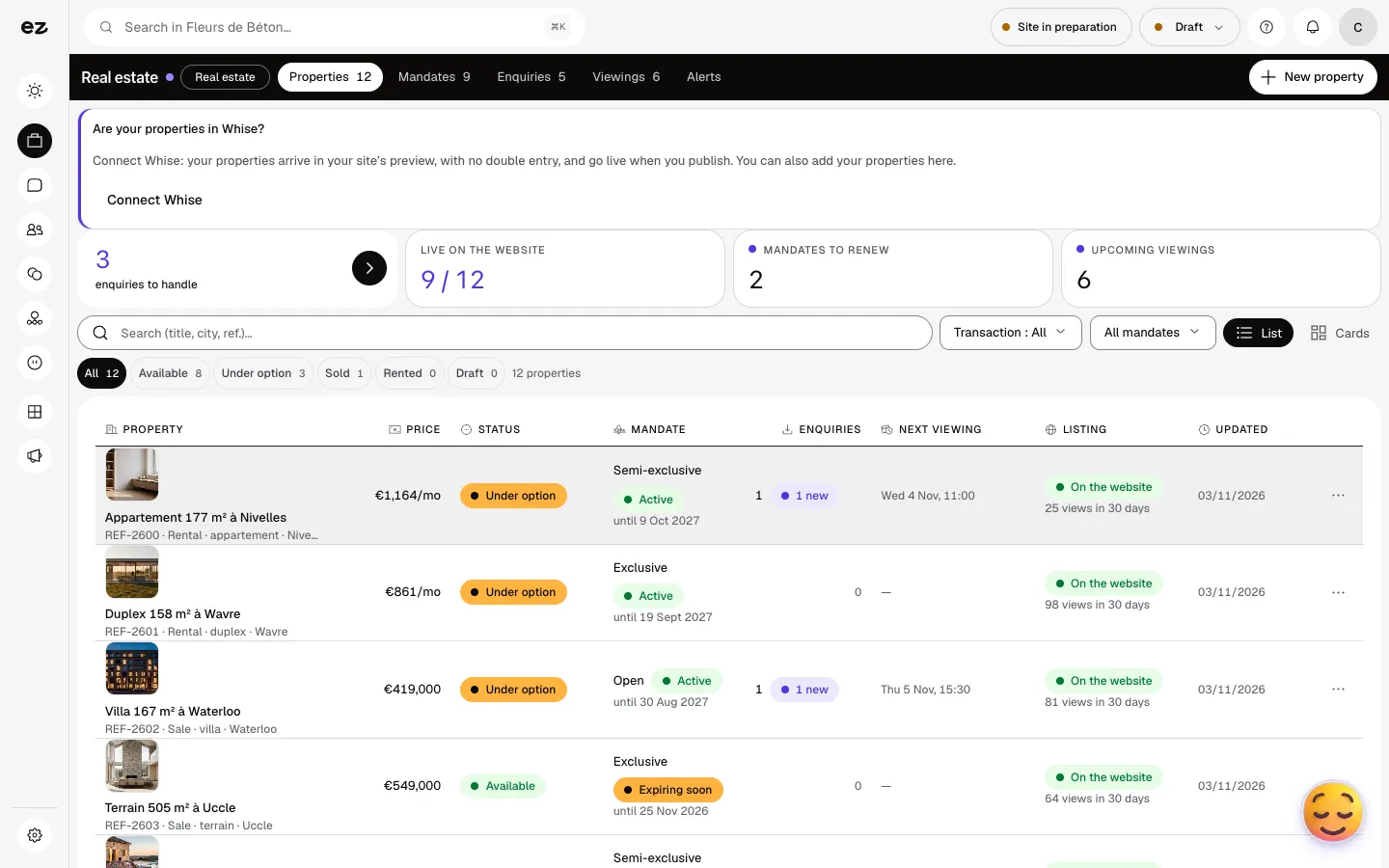
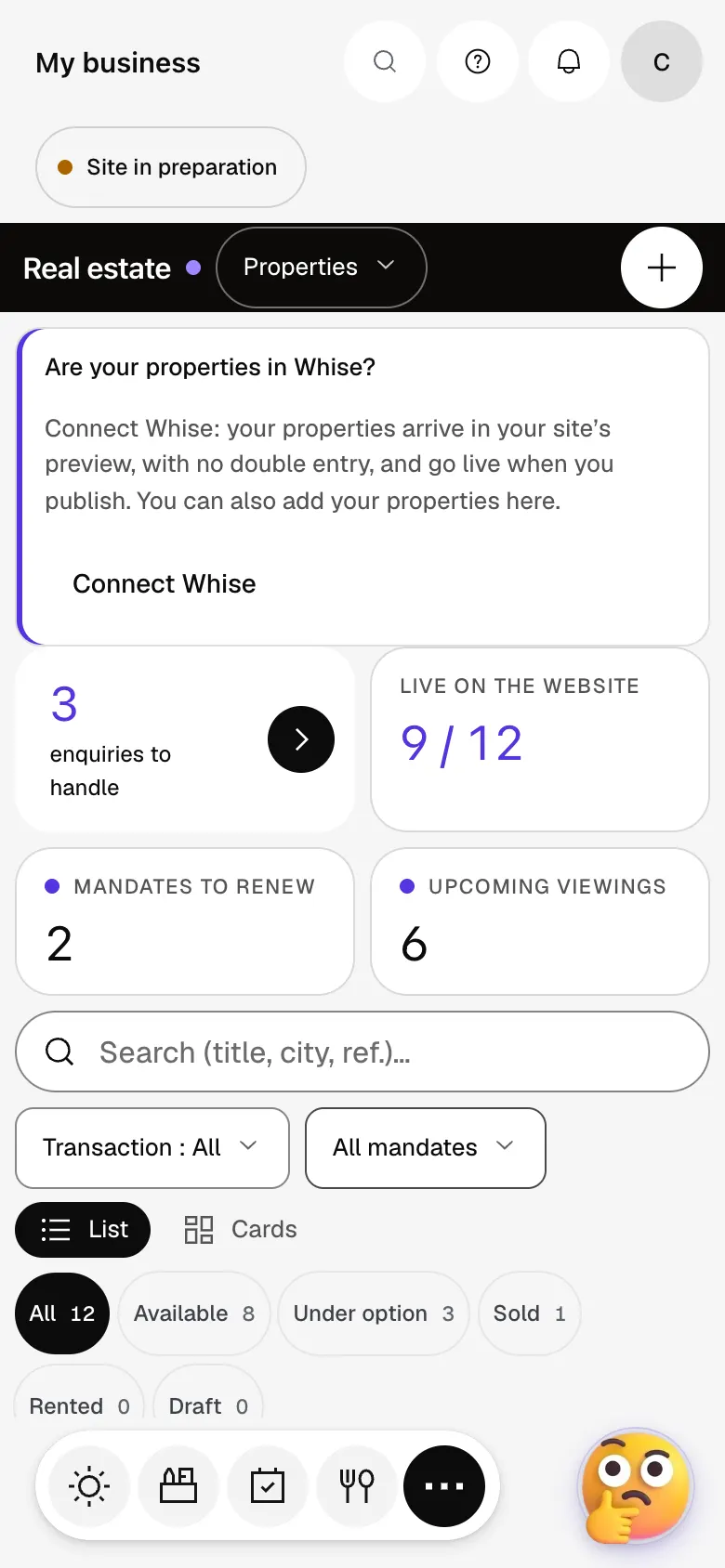
The module in one minute
Transcript
Your properties, mandates, enquiries and viewings, on a single screen. What needs an answer comes first: the new enquiries to handle. For each property: whether it’s on your site and its views over 30 days. Enquiries from your site land here, linked to the property and the contact. Schedule viewings, then record the report and the visitor’s interest. The mandate register flags those expiring soon. Add a property by hand, or sync your real estate software. The “?” at the top of every screen opens the module’s documentation.
Do I enter properties twice?
No: once Whise is connected, its properties arrive on their own and update about every 6 hours, or when you click “Sync”. You edit and remove them in Whise.
My software isn’t Whise?
Whise is the only connected software today. With another one, enter your properties in Real estate and tell Ziggy or our team about your software.
Can I try it during the free trial?
Yes: in Settings, Eazyclick subscription, My plan tab, turn on Real estate under “Your trial modules”. It opens right away, until the trial ends. Spark includes four standard modules; beyond that, the price per module falls as you add more. This module uses no credits.
How much does Real estate cost?
The price of Real estate is shown on the module page and on the Pricing page. Eazyclick subscription also shows what it adds to your subscription before you request it.


