What this module is for
Your calls go through OVH Telecom and show up in a shared calls inbox: who called, when, who is on it and what to do next. You keep your OVH account and contract.
Getting started, step by step
- Step 1
Turn the module on
In Eazyclick OS, open Settings then Eazyclick subscription, Available modules tab, and click “Request activation” next to Phone system, or ask your project manager. During the trial, the list is in My plan, under “Add other modules”: a module marked “With Spark” opens when you move to Spark. Once active, the module shows up in the menu, with a “?” at the top of the screen that brings you back to this page.
- Step 2
Request activation
Open Messages then Telephony, Carrier tab, and click “Request activation”. Your Eazyclick team connects your OVH Telecom account and declares your lines: you enter no credentials on screen.
- Step 3
Call
“Call” opens the keypad: pick the line and enter the number. Your line rings first, then the person you are calling.
- Step 4
Handle the calls
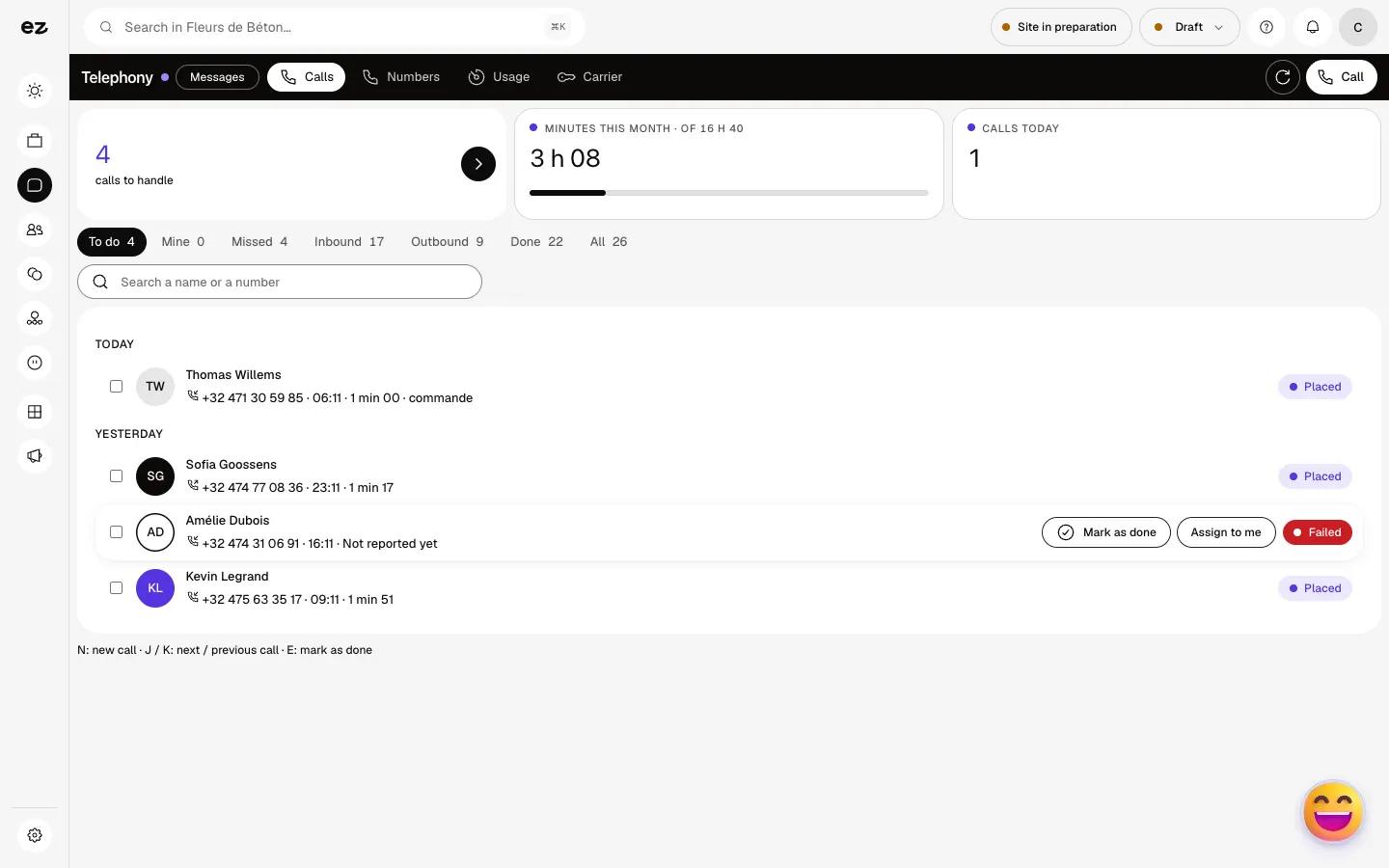
The Calls tab sorts the calls: To do, Mine, Missed, Inbound, Outbound. A known number shows the contact’s name. “Call back” and “Mark as done” are one click away from the call.
- Step 5
Note the next step
Add a note and tags to the call, for the whole team. “Link to a contact” attaches the call to their record, if the number isn’t on it yet.
- Step 6
Watch your usage
The Usage tab compares your outbound calls and minutes with your caps. At the cap, outbound calls stop and inbound calls continue. To change them: “Request a different cap”.
What it looks like
The module in one minute
Transcript
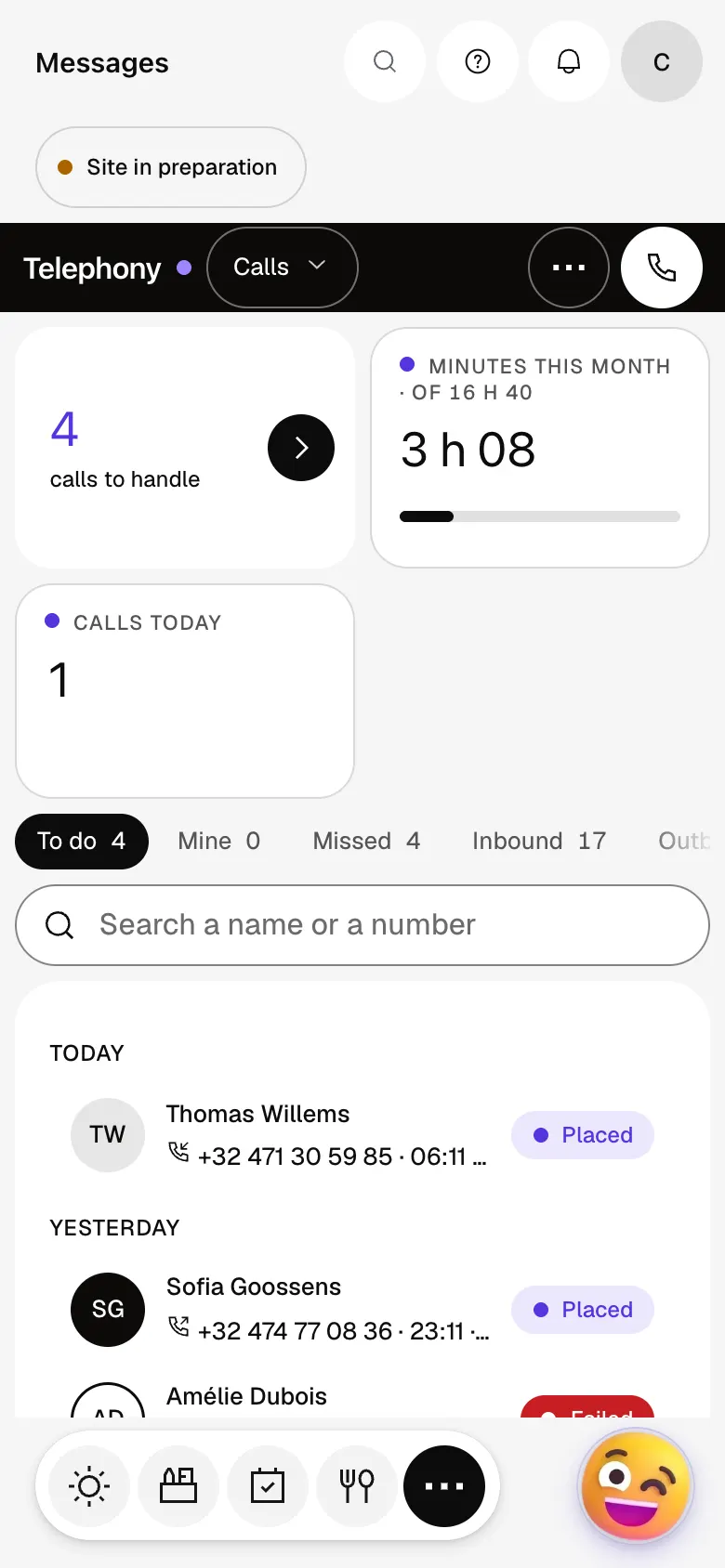
All your calls in one place: the ones to handle first, with the customer’s name. The number of calls to handle stands out: nobody waits for a call back without you knowing. Filter: missed, incoming and outgoing calls, or the ones assigned to you. Each row says who called and when; once you’ve called back, mark the call as handled. Call straight from the screen, using your business number. Numbers: your lines and the default one. Usage: this month’s minutes and your cap, so there are no surprises. The “?” at the top of every screen opens the module’s documentation.
Do I have to change carrier?
No: the module plugs into your OVH account. Your numbers and contract stay the same.
Are calls billed separately?
Calls are still billed by your carrier; the module itself has its own price on its page.
Can I try it during the 14 days?
No. During the trial, the Phone system stays marked “With Spark” in the list of modules. It opens with Spark, as an option.
How much does Phone system cost?
The price of Phone system is shown on the module page and on the Pricing page. Eazyclick subscription also shows what it adds to your subscription before you request it.


