What this module is for
Send a 0 to 10 NPS survey after a purchase, a store sale, an appointment or a repair: the score, its trend and the comments read in Reputation, by store and by team member.
Getting started, step by step
- Step 1
Turn the module on
In Eazyclick OS, open Settings then Eazyclick subscription, Available modules tab, and click “Request activation” next to Customer satisfaction (NPS), or ask your project manager. During the trial, the list is in My plan, under “Add other modules”: a module marked “With Spark” opens when you move to Spark. Once active, the module shows up in the menu, with a “?” at the top of the screen that brings you back to this page.
- Step 2
Turn the surveys on
In Reputation, Satisfaction (NPS) tab, turn on “Automatic surveys”: a survey goes out after a purchase, a store sale, a completed appointment or a returned repair. For an online order, it waits two days after handover.
- Step 3
Read the score
The tab gives the NPS, the share of promoters (9-10) and detractors (0-6), the response rate and the monthly trend, over the period you choose.
- Step 4
Send or import
“Send a survey” targets a customer by email address. “Import Listen360” brings in your history from a CSV file; a re-imported file creates no duplicates.
- Step 5
Respond to unhappy customers
The Latest comments card gives the score, the customer’s words and their name: call a detractor back before they leave a public review.
What it looks like
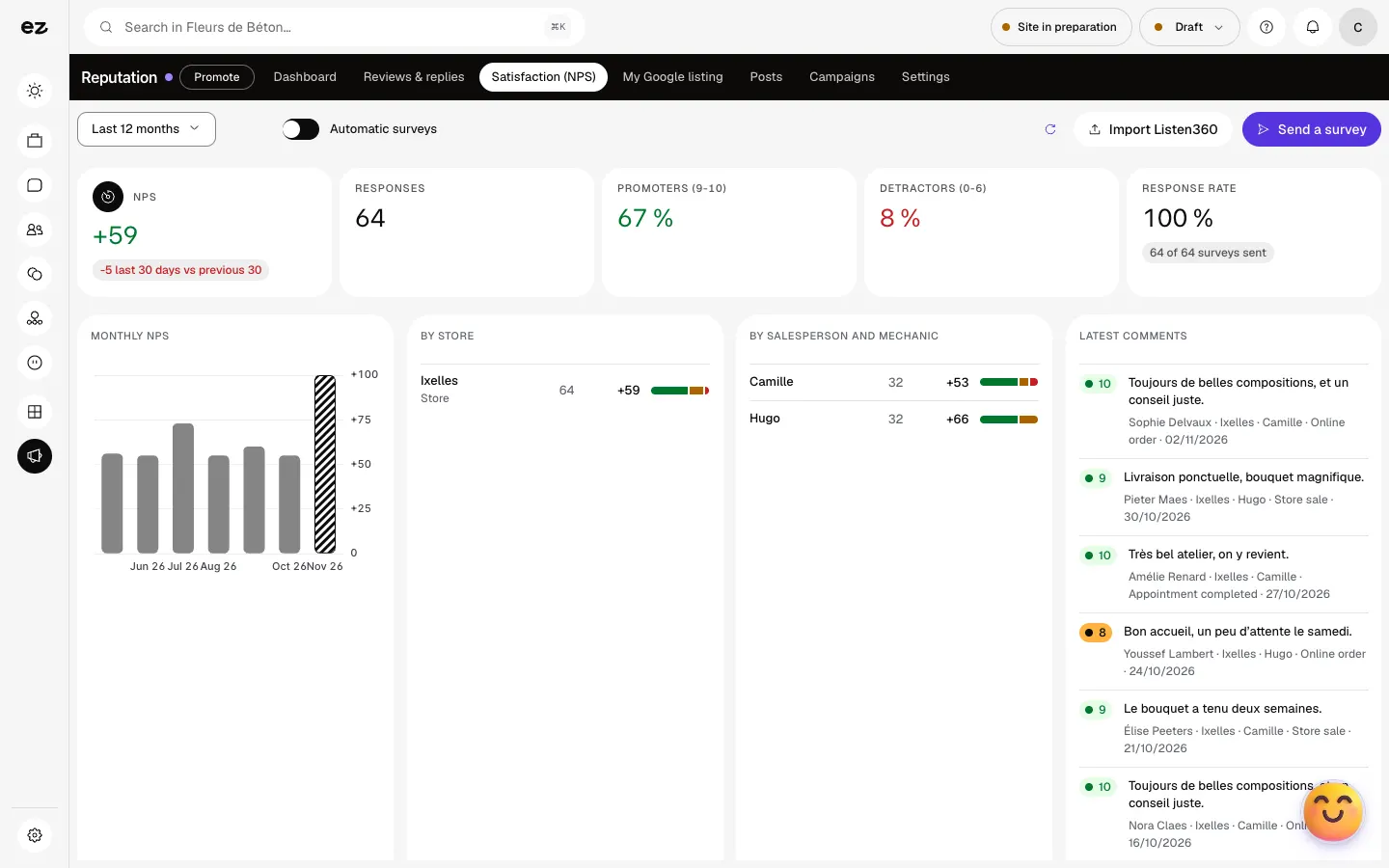
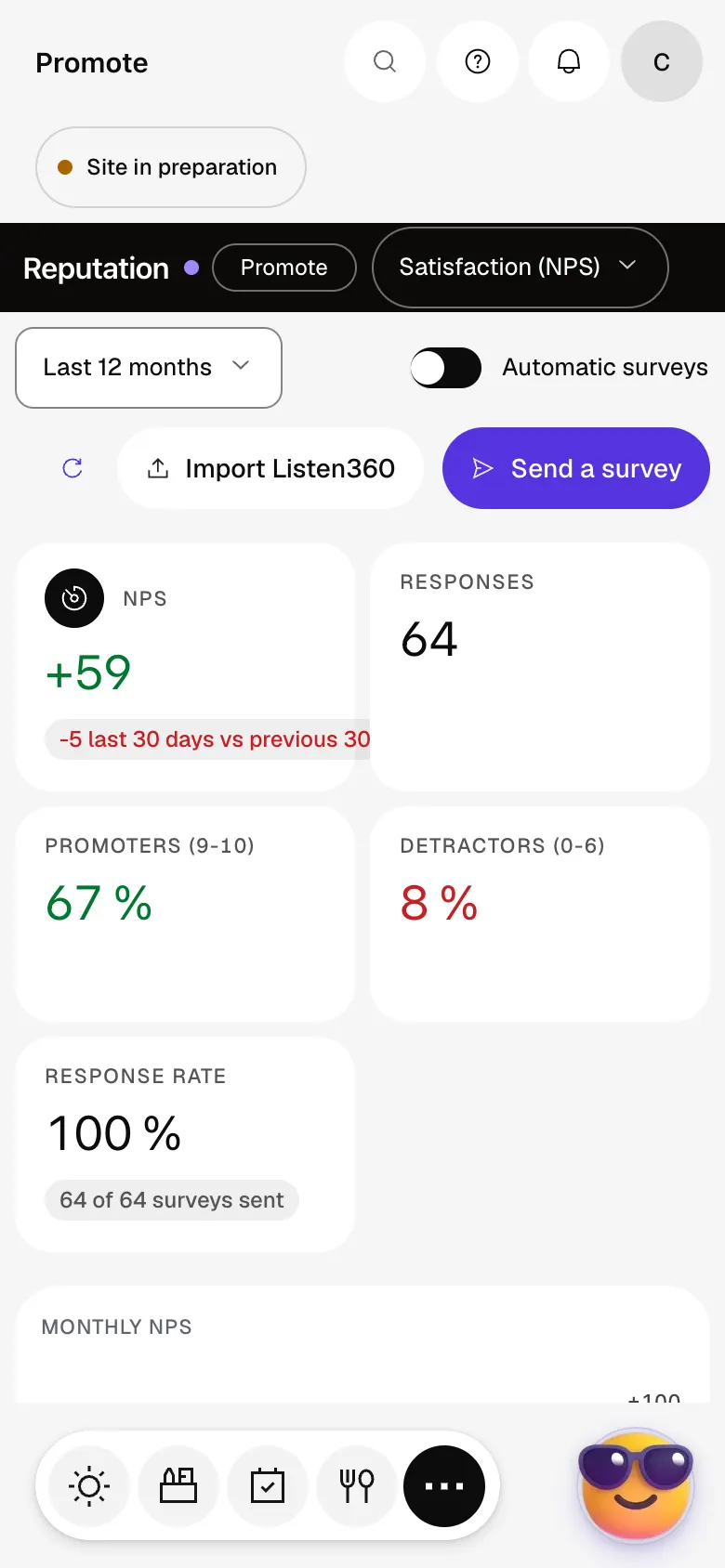
The module in one minute
Transcript
Your NPS: the share of customers who recommend you, minus the unhappy ones. Promoters, detractors, response rate: all read over the period you choose. Turn on automatic surveys: they go out on their own after a purchase or appointment. Or send a survey by hand to a specific customer, whenever you see fit. Follow the score month after month, and by store or by team member. The latest comments stay in view: an unhappy customer gets called back the same day. The “?” at the top of every screen opens the module’s documentation.
Does the NPS module work on its own?
No, it comes with Local reputation at no extra charge: the Satisfaction (NPS) tab appears in that screen.
Can I compare several stores?
Yes, the By store and By salesperson and mechanic cards give each one’s score.
Can a customer get too many surveys?
No: a minimum delay separates two surveys to the same customer, and an unsubscribed customer no longer gets them.
How much does Customer satisfaction (NPS) cost?
The price of Customer satisfaction (NPS) is shown on the module page and on the Pricing page. Eazyclick subscription also shows what it adds to your subscription before you request it.


