What this module is for
Run your Google listing from Eazyclick: up-to-date details and opening hours, posts, replies to reviews and collection campaigns after a purchase or an appointment.
Getting started, step by step
- Step 1
Turn the module on
In Eazyclick OS, open Settings then Eazyclick subscription, Available modules tab, and click “Request activation” next to Local reputation, or ask your project manager. During the trial, the list is in My plan, under “Add other modules”: a module marked “With Spark” opens when you move to Spark. Once active, the module shows up in the menu, with a “?” at the top of the screen that brings you back to this page.
- Step 2
Get your Google listing linked
Our team links your listing for you, with no password to hand over: ask Ziggy or your project manager. Until then, what you change in Reputation, My Google listing tab, is saved and goes to Google once linked.
- Step 3
Reply to reviews
Reviews & replies tab: click “Reply”, write your text, then “Publish reply”. In the Settings tab, the Negative review alert emails the recipients you choose, at or below the number of stars you set.
- Step 4
Keep the listing up to date
In My Google listing, change the description, phone, website and opening hours, then click “Publish to Google”. The Posts tab prepares an update, an offer or an event, to publish right away or schedule.
- Step 5
Collect new reviews
Campaigns tab: “New campaign” creates a printable QR code, or an email sent after a paid order or a completed appointment, with the link to your Google review page.
What it looks like
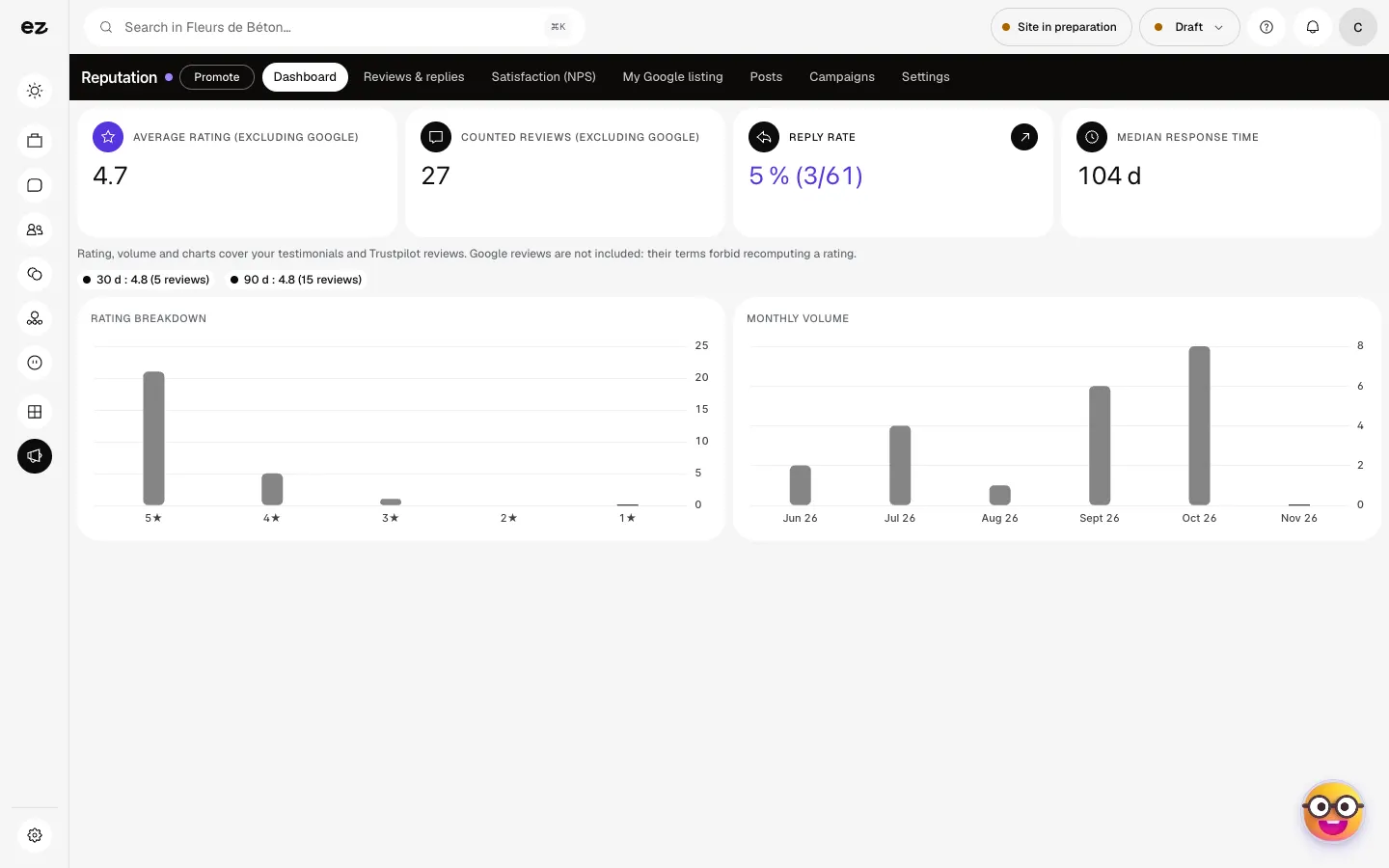
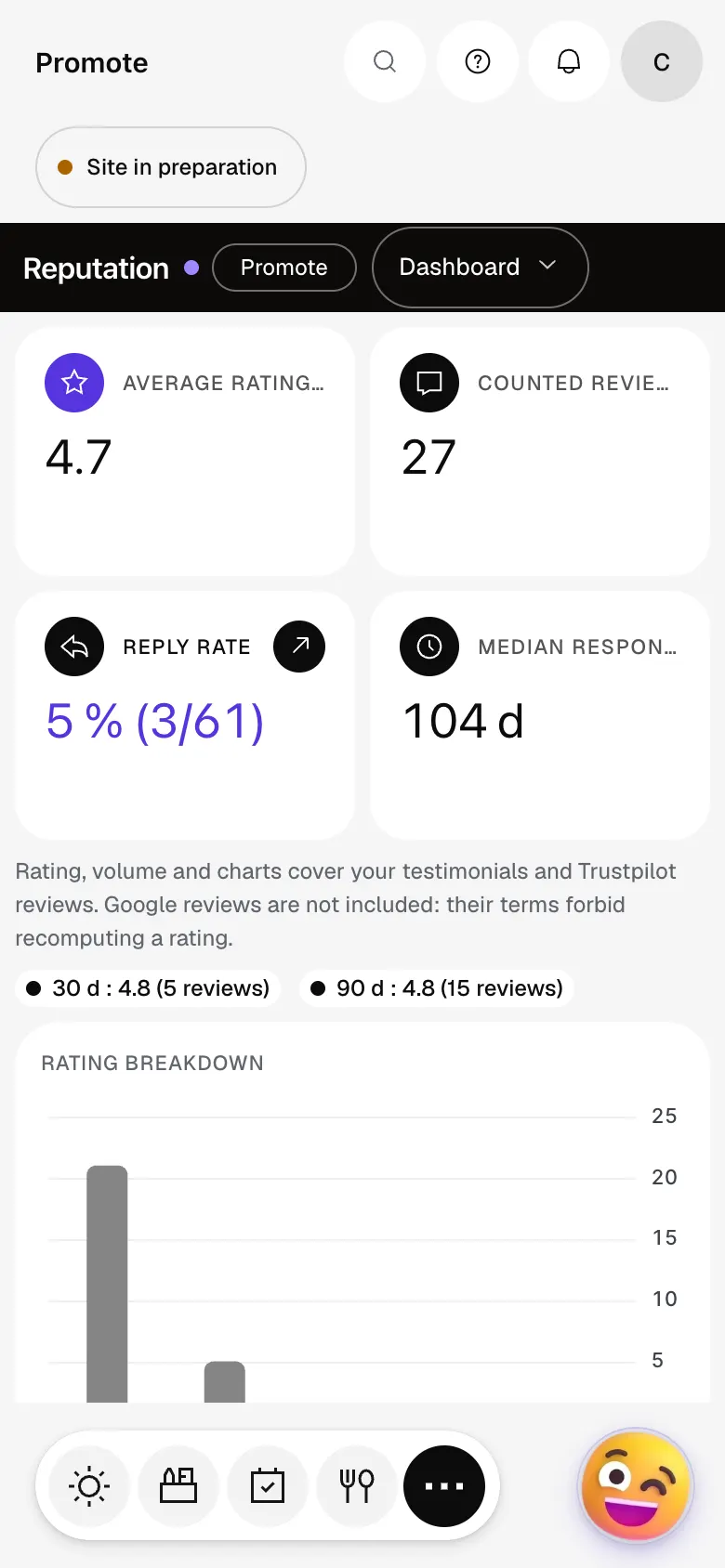
The module in one minute
Transcript
Your reputation at a glance: the rating, the number of reviews, the reply rate and reply time. One click on the reply rate opens the reviews still waiting for an answer. Reviews and replies: those from Google and other sources, handled from the same list. My Google profile: description, phone, website and opening hours, kept up to date here. Posts: prepare your Google offers and news, and schedule them in advance. Campaigns: a printable QR code or a post-purchase email, to collect new reviews. The “?” at the top of every screen opens the module’s documentation.
Do I need a Google listing already?
Yes, the module manages an existing listing. Your project manager can help you claim it if needed.
Why doesn’t my average rating count Google?
Google’s terms forbid recomputing its rating. The dashboard gives your rating excluding Google, from your testimonials and Trustpilot reviews, and shows the rating Google publishes separately.
Is the module open during the trial?
Only if it’s in the core of your trade’s pack. Otherwise, this premium module is added from Spark onwards. It includes Customer satisfaction (NPS).
How much does Local reputation cost?
The price of Local reputation is shown on the module page and on the Pricing page. Eazyclick subscription also shows what it adds to your subscription before you request it.


