What this module is for
A calendar to plan articles, posts and newsletters, and follow each piece from idea to publication, alone or as a team.
Getting started, step by step
- Step 1
Turn the module on
In Eazyclick OS, open Settings then Eazyclick subscription, Available modules tab, and click “Request activation” next to Editorial calendar, or ask your project manager. During the trial, the list is in My plan, under “Add other modules”: a module marked “With Spark” opens when you move to Spark. Once active, the module shows up in the menu, with a “?” at the top of the screen that brings you back to this page.
- Step 2
Plan a piece of content
In the menu, open My site then Editorial. Click “New content” or a day on the calendar: title, type (article, social post, newsletter), target channel, scheduled date and assignee.
- Step 3
Track its progress
Each piece moves through four statuses: Idea, Draft, Ready, Published. The Calendar, Kanban and List views show where it stands; in the Kanban, a missed date shows as “Overdue”.
- Step 4
Group by campaign
“New campaign” gathers the content for one key moment; you can then filter the calendar by campaign.
What it looks like
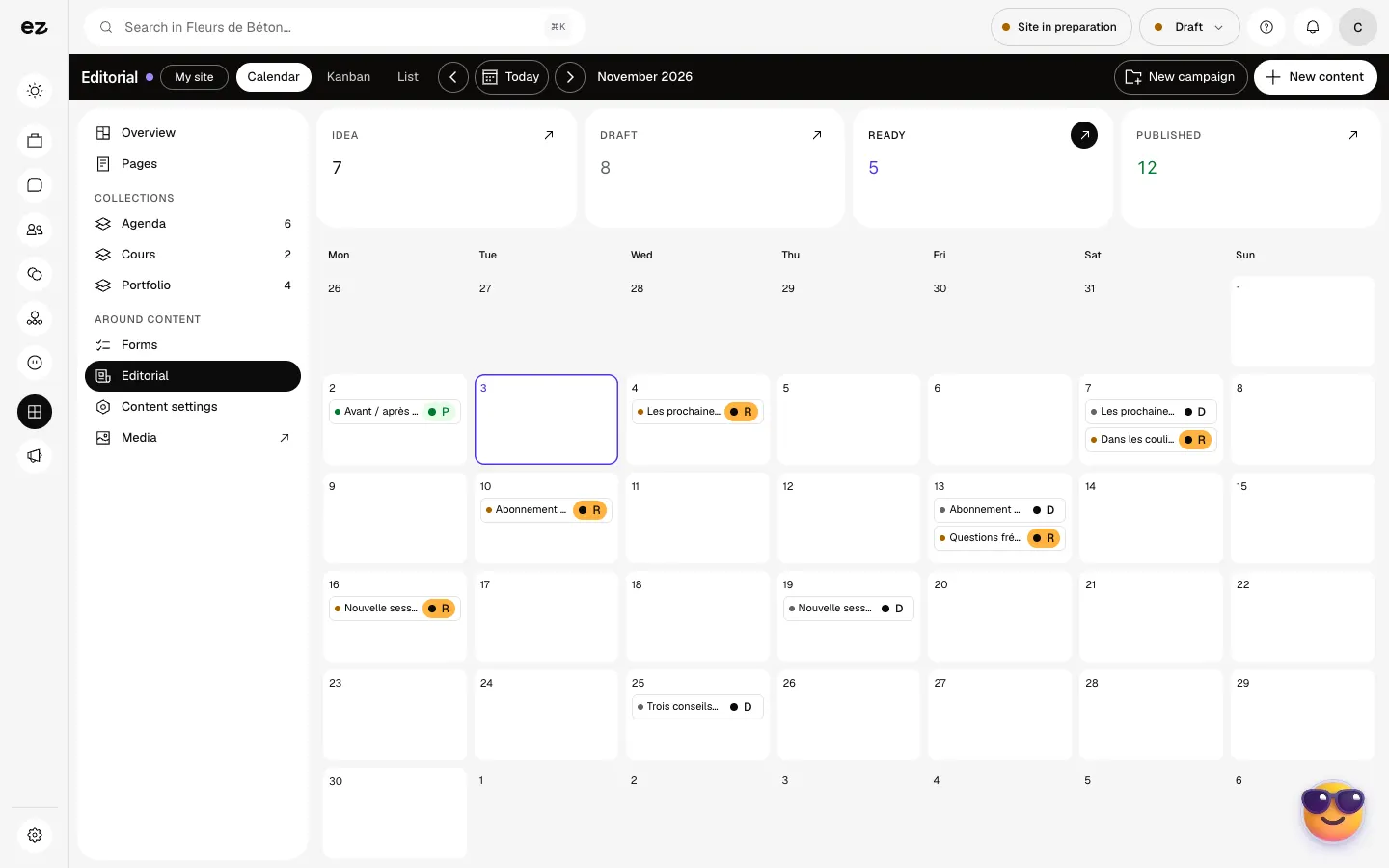
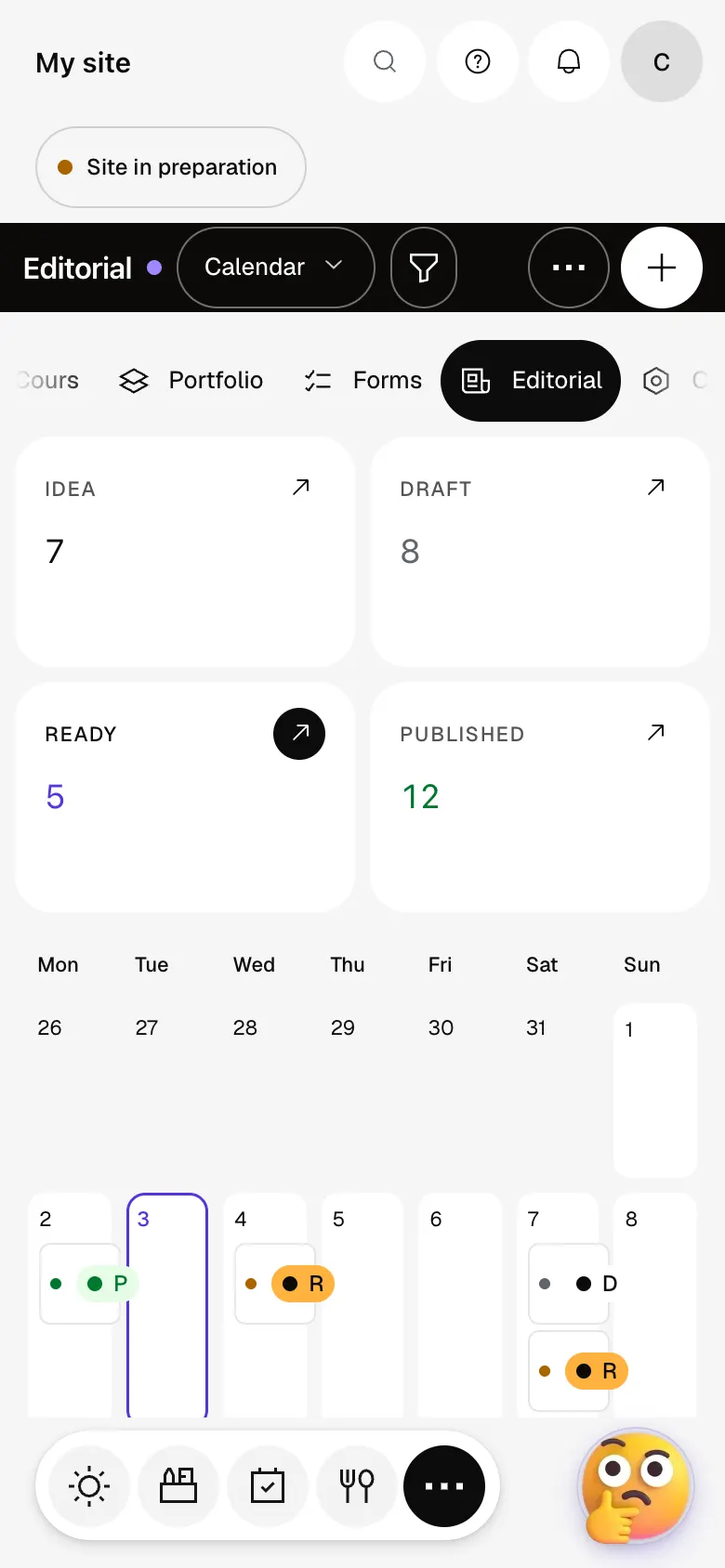
The module in one minute
Transcript
Everything you’ll publish this month, on a single calendar. Idea, draft, ready, published: see at a glance where your content stands. Each piece has its date and status, right there in the calendar. Move from month to month to prepare your next posts. The Kanban view sorts your content by status, so you move through items one by one. Group your content into campaigns around the same key moment. Add a piece: article, social post or newsletter, with its planned date. The “?” at the top of every screen opens the module’s documentation.
Does the calendar publish for me?
No: it plans, and you set the piece to “Published” once it’s live. For LinkedIn, the Social screen, included in the module, sends your posts once the account is connected; other networks aren’t open for publishing.
Can I share it with my agency?
Yes, by inviting them in Team access, within your plan’s user limit (3 with Spark, 10 with Boost).
Can I try it during the free trial?
Yes: in Settings, Eazyclick subscription, My plan tab, turn it on under “Your trial modules”. It opens right away, until the trial ends. This module uses no credits.
How much does Editorial calendar cost?
The price of Editorial calendar is shown on the module page and on the Pricing page. Eazyclick subscription also shows what it adds to your subscription before you request it.


