What this module is for
Structure your training into chapters and lessons, set the access price and follow each student’s progress in Eazyclick OS. Your students take their lessons on your published website: you grant access by hand, or they buy it on the course page.
Getting started, step by step
- Step 1
Turn the module on
In Eazyclick OS, open Settings then Eazyclick subscription, Available modules tab, and click “Request activation” next to Courses & paid content, or ask your project manager. During the trial, the list is in My plan, under “Add other modules”: a module marked “With Spark” opens when you move to Spark. Once active, the module shows up in the menu, with a “?” at the top of the screen that brings you back to this page.
- Step 2
Create the course
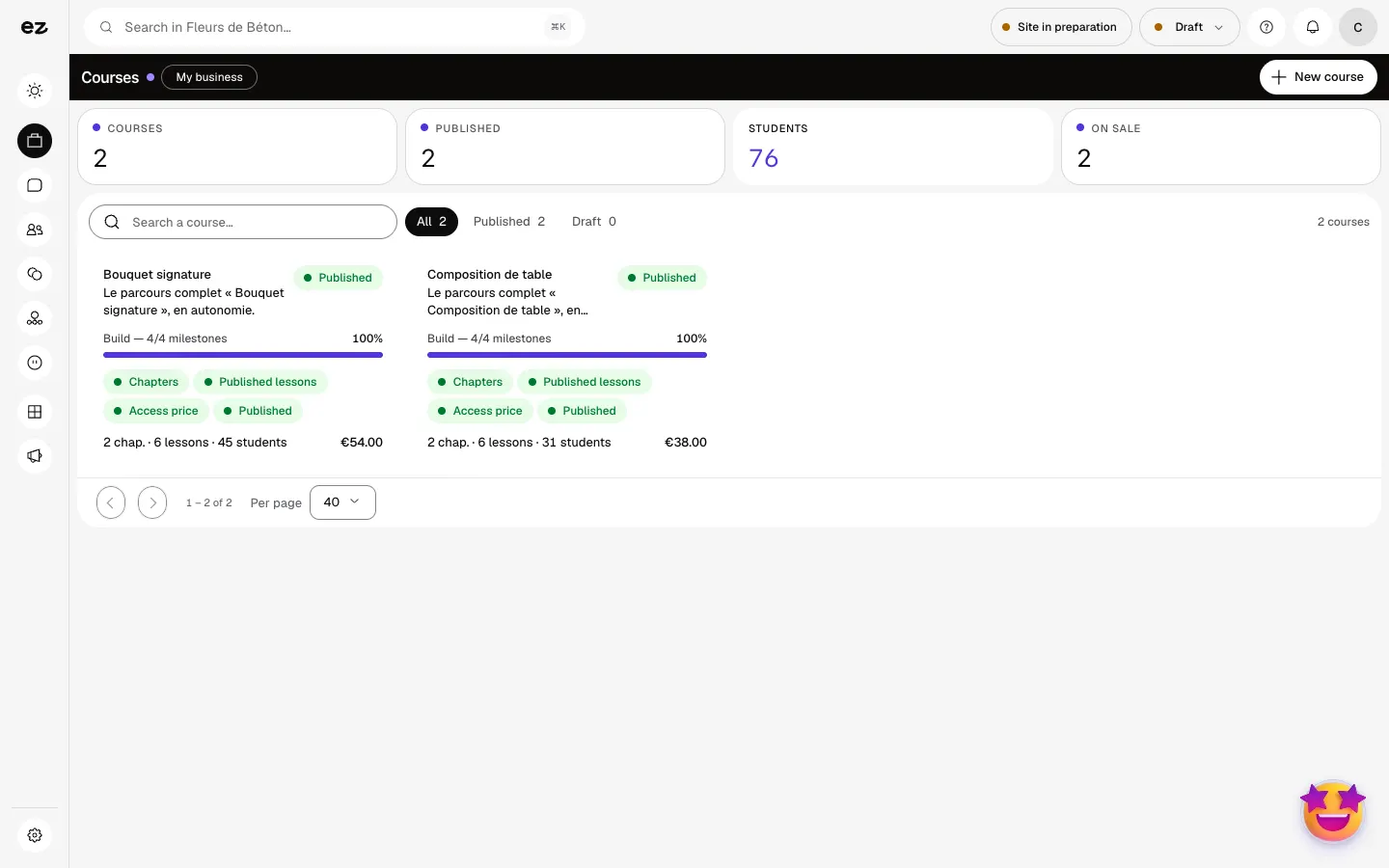
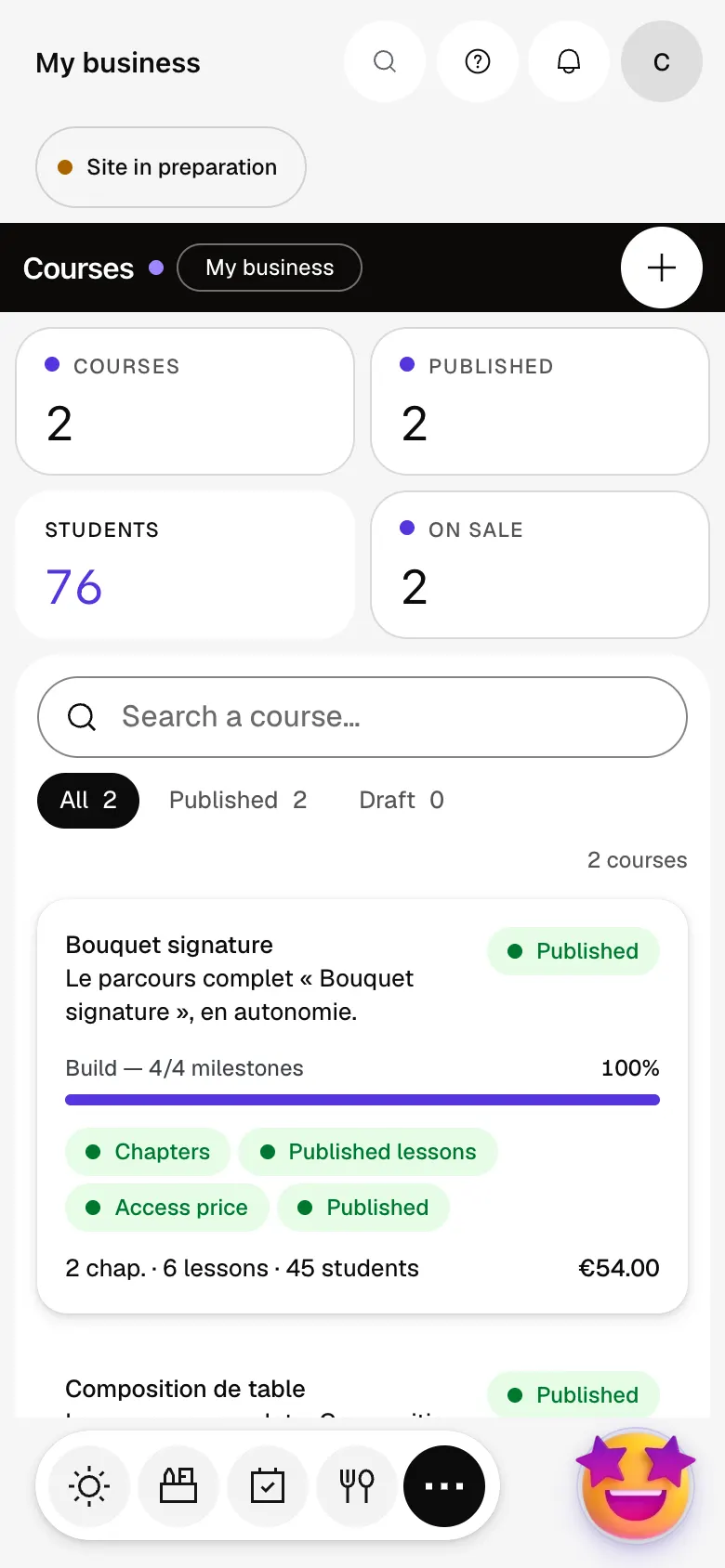
In Courses, click “New course”: a title and, if you like, a tagline. The course card then counts its milestones: chapters, published lessons, access price, publication.
- Step 3
Build the curriculum
In the Curriculum tab, add your chapters then your lessons: text, video, duration. A lesson can stay as a free preview.
- Step 4
Put access on sale
In the Pricing tab, enter the price then click “Put on sale”. You need at least one chapter, one published lesson and the E-commerce module on. The course can then be bought on its page, if a Mollie or Stripe account is connected to E-commerce.
- Step 5
Follow your students
The Students tab shows each student’s progress, the Reports tab completion lesson by lesson. “Enroll a student” gives free access, “Remove access” takes it back and keeps their progress.
What it looks like
The module in one minute
Transcript
Prepare your courses here. Students reading their lessons is not in service yet. Create a course, then follow the guide all the way to publication. A course card shows what’s ready, its students and its price. The curriculum: chapters, lessons, and a first lesson marked as a preview. Students: who has started, who has finished, and how far each one has got. You can also enrol a student yourself, without going through a sale. Reports: completion lesson by lesson, so you can see where students drop off. The “?” at the top of every screen opens the module’s documentation.
How do my students get to the lessons on my website?
They sign in on your published website and take their course lessons there. You grant access by hand with “Enroll a student”, or they buy it on the course page: payment opens access. Without a Mollie or Stripe account connected to E-commerce, the course can’t be bought online: grant access by hand.
Which other modules do I need?
The Members area, which courses rely on, and E-commerce to sell access. The purchase happens on the course page and the money reaches your payment account, with no Eazyclick commission.
Can I give a course away?
Yes: “Enroll a student” in the Students tab, or “Offer access” on a member’s record.
Can I try it during the free trial?
Yes: in Settings, Eazyclick subscription, My plan tab, turn on Courses and Members area under “Your trial modules”. E-commerce, a premium module, only opens there if your pack includes it. Spark includes four standard modules; beyond that, the price per module falls as you add more. This module uses no credits.
How much does Courses & paid content cost?
The price of Courses & paid content is shown on the module page and on the Pricing page. Eazyclick subscription also shows what it adds to your subscription before you request it.


