What this module is for
Customers order online and choose a pickup slot, and their shop if you have several. Your team prepares the order and the customer is told when it’s ready.
Getting started, step by step
- Step 1
Turn the module on
In Eazyclick OS, open Settings then Eazyclick subscription, Available modules tab, and click “Request activation” next to Click & Collect, or ask your project manager. During the trial, the list is in My plan, under “Add other modules”: a module marked “With Spark” opens when you move to Spark. Once active, the module shows up in the menu, with a “?” at the top of the screen that brings you back to this page.
- Step 2
Set up the pickup point
In Pickups, Settings tab: pickup point name, pickup hours, slot length, max orders per slot, preparation lead time and booking horizon. Your holidays go under “Closures & exceptions”.
- Step 3
Prepare orders
The Preparation tab shows the day’s pickups in three columns: To prepare, Ready, Collected. Once the order is packed, click “Mark ready” or drag its card: the customer then gets their notice.
- Step 4
Hand over to the customer
At the counter, click “Handed over”: the order moves to Collected. An order that skips the Ready step has not notified the customer: the screen asks you to confirm.
What it looks like
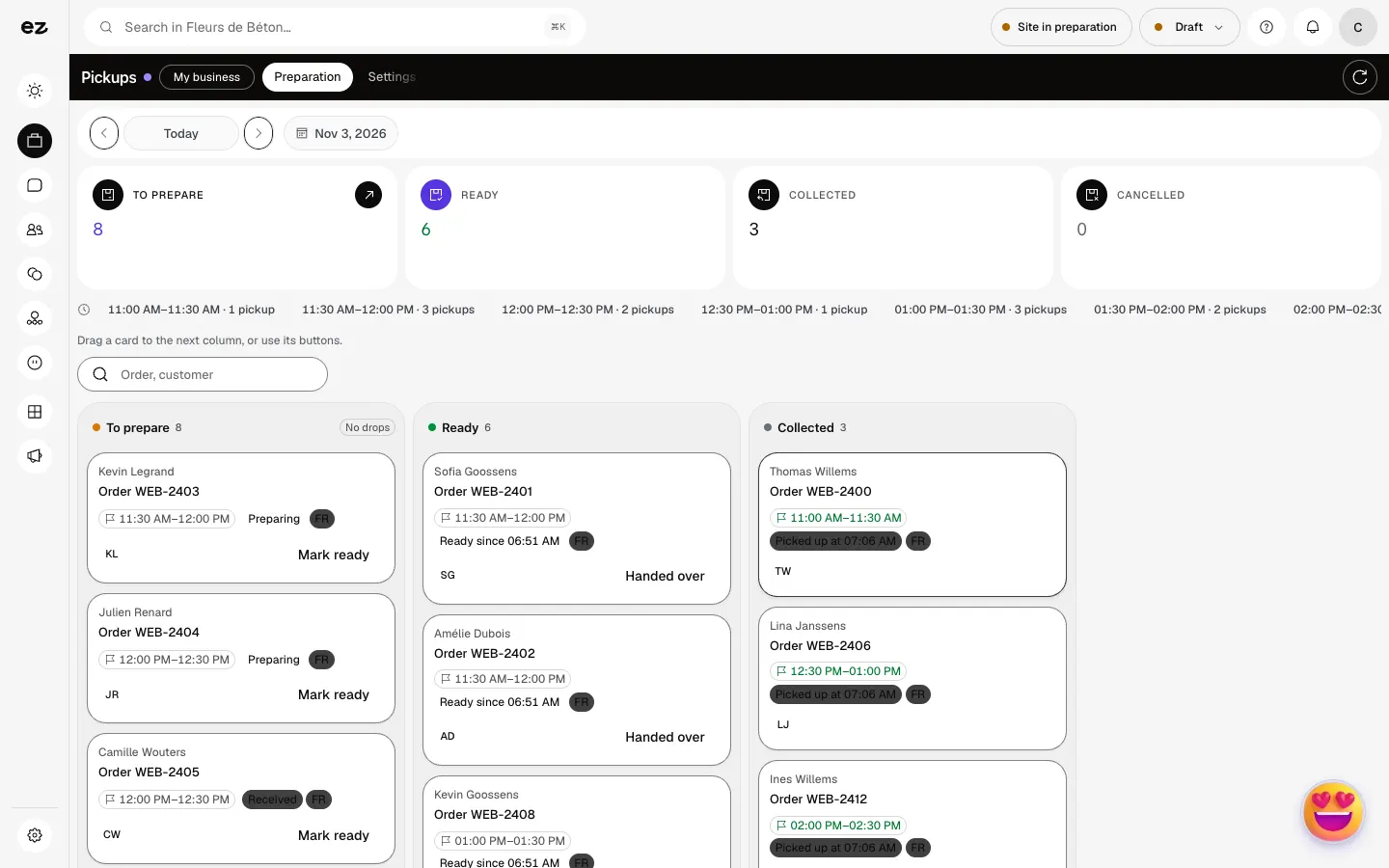
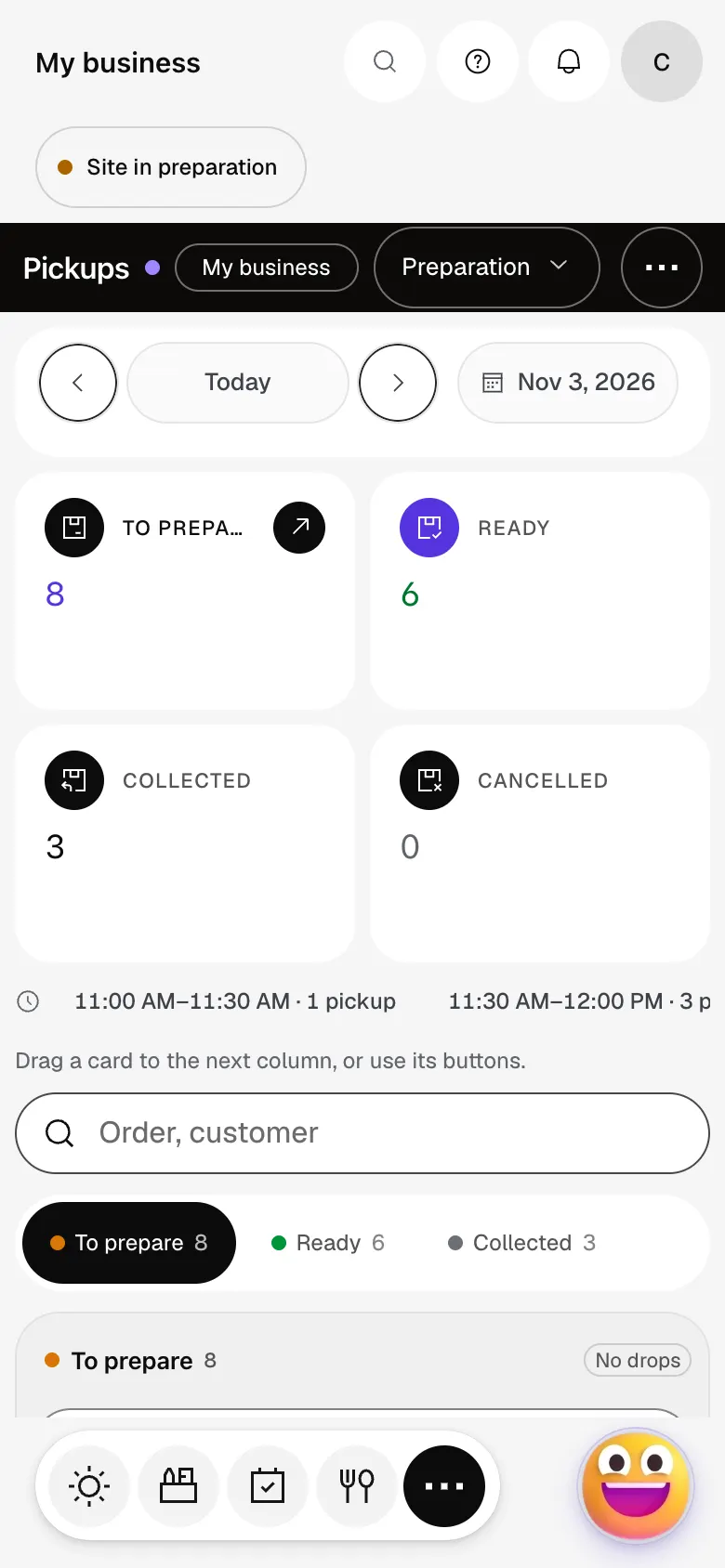
The module in one minute
Transcript
Customers order online and come to collect. Here is the day, on one screen. To prepare, ready, collected: you know where things stand at once. The day’s time slots read at a glance: how many pickups, and when. Order ready? One tap, and the customer is told to come and collect it. At the counter, hand over the order: it moves to “Collected”. A customer walks in? Find their order by name or number. In the settings: your pickup points, opening hours and time slots. A question? The “?” at the top of every screen opens this documentation.
Do I need an online shop?
Yes, in-store pickup relies on your shop’s products and stock.
Can I run several shops?
Yes, if your shop has several stock locations: “One pickup point per store” creates one for each, with the current point’s hours. The customer chooses theirs and preparation can be filtered by shop.
How much does Click & Collect cost?
Click & Collect is included with the E-commerce module, at no extra cost. During the 14-day trial, it opens if your Shop is open; otherwise it comes with Spark. It uses no credits.


