What this module is for
The chatbot, called Sales agent in Eazyclick OS, answers your visitors from what you write for it and from your published website. It makes up no prices or lead times, hands over to a person on request and passes contact details left to the CRM.
Getting started, step by step
- Step 1
Turn the module on
In Eazyclick OS, open Settings then Eazyclick subscription, Available modules tab, and click “Request activation” next to Chatbot, or ask your project manager. During the trial, the list is in My plan, under “Add other modules”: a module marked “With Spark” opens when you move to Spark. Once active, the module shows up in the menu, with a “?” at the top of the screen that brings you back to this page.
- Step 2
Write what it knows
Open AI assistants then Sales agent, “What it knows” tab. Write one entry per topic: opening hours, delivery, terms. Without an active entry, the agent refuses to answer, even when switched on.
- Step 3
Have it read your website
In the same tab, “Rebuild the index” has it read your published pages, articles and product sheets. Do it again when your website changes: the index doesn’t rebuild on its own.
- Step 4
Set it up and switch it on
In Settings, choose the display name, the welcome line and the conversation’s goal, then turn on “Agent active”: the chat bubble appears on your website.
- Step 5
Follow the conversations
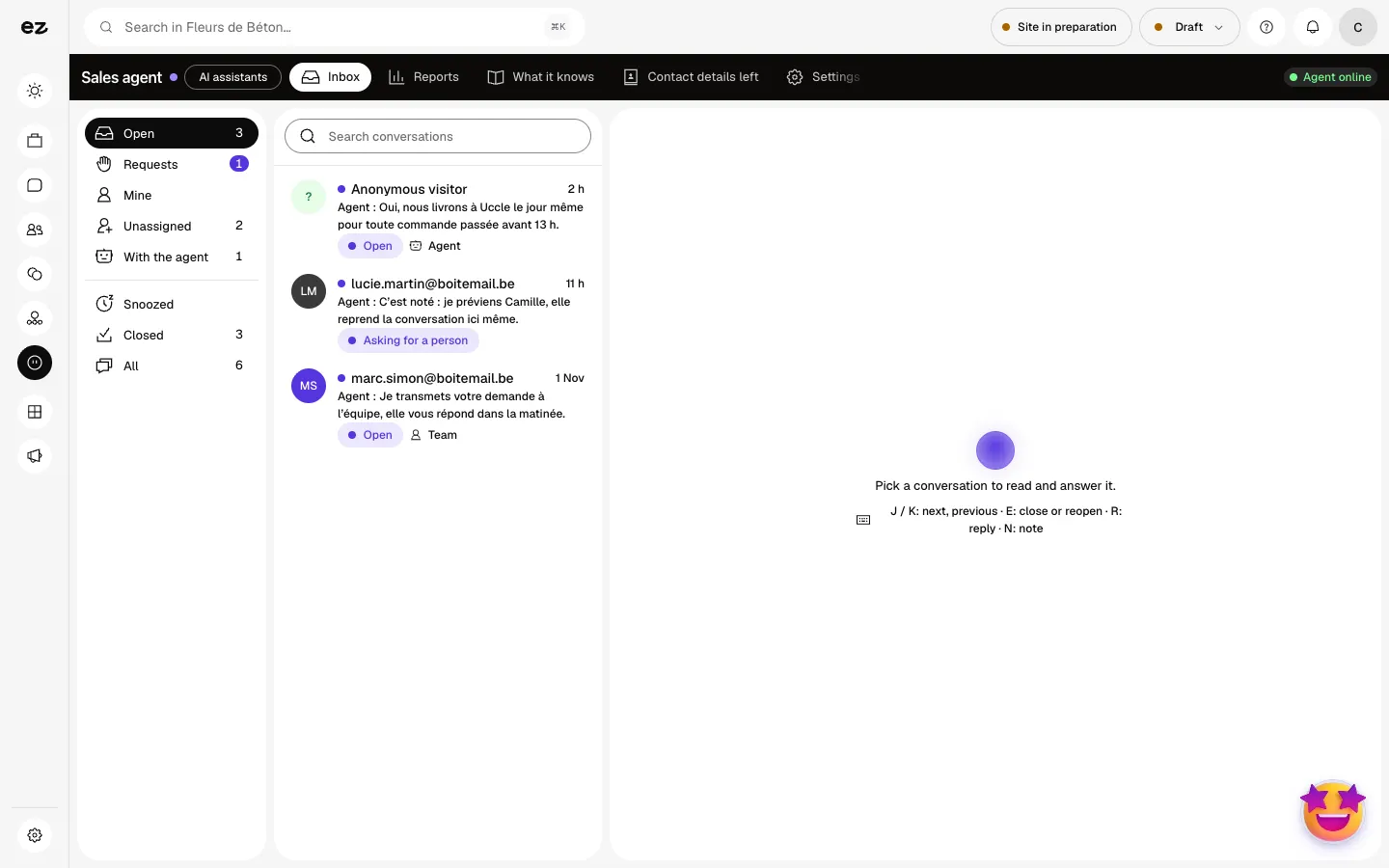
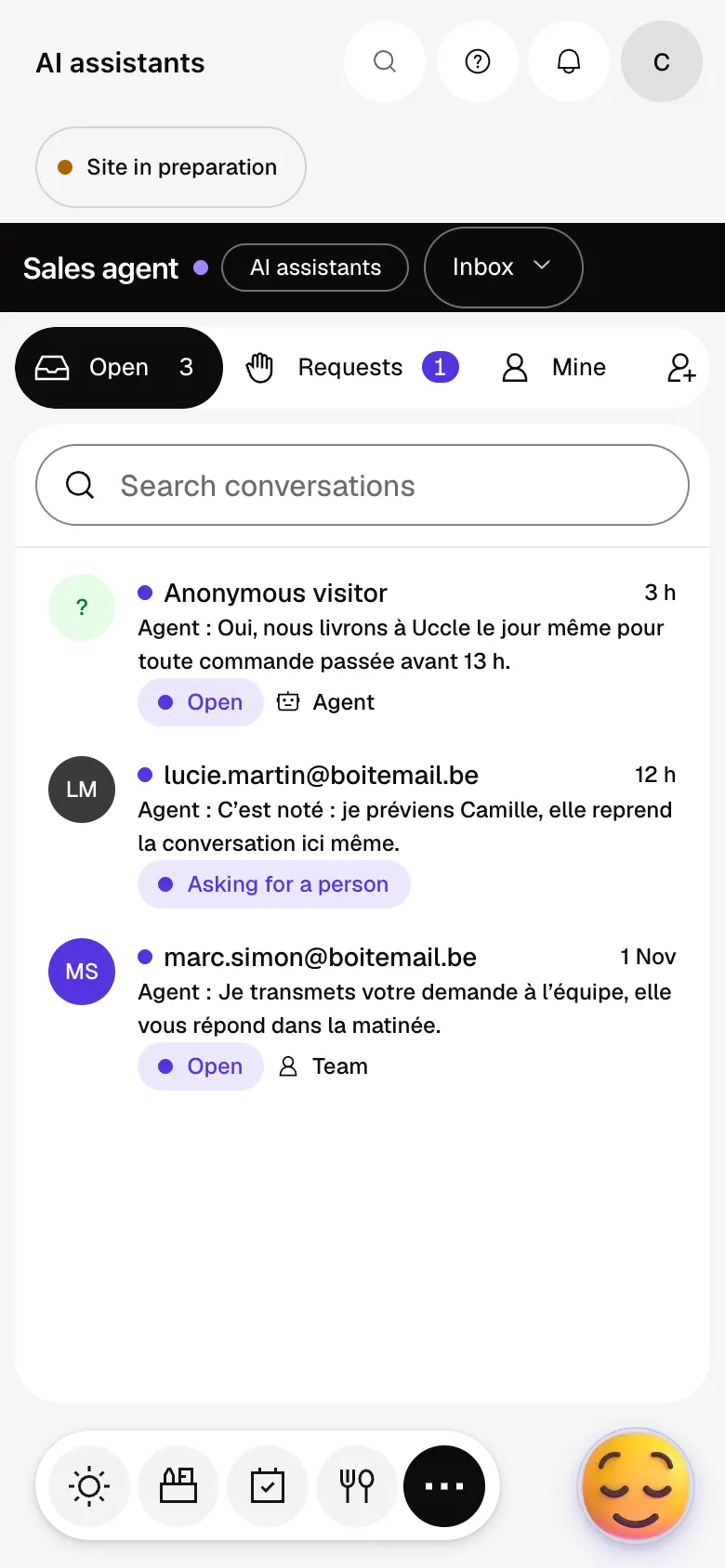
The Inbox tab shows every conversation: “Take over” lets you reply yourself. “Contact details left” lists the people to get back to, also passed to the CRM when it is active. Reports measures what the agent resolved.
What it looks like
The module in one minute
Transcript
The agent answers your site’s visitors at any hour, based on what you’ve taught it. A visitor wants to talk to someone: the conversation is flagged, the agent waits for your reply. You take over here, in the same conversation, without the visitor switching screens. What it knows: a card is a topic and its answer. Without a card, it refuses to improvise. Contact details left: interested visitors become contacts to call back. Reports: the number of conversations, and the share solved by the agent. Settings: its name, its welcome message and the handover to your team. The “?” at the top of every screen opens the module’s documentation.
Can the chatbot make up an answer?
It answers only from your entries and your website. When it doesn’t know, it says so and offers to have the person called back. A quote is only the sum of your “Quote price list”.
Which languages does it answer in?
In the visitor’s language, from what you wrote for it.
Do its answers use credits?
No. They are limited by two settings: “Answers per day” (200 to start with) and “Answers per visitor” (30 to start with). Past the daily cap, the agent stays silent until the next day.
Can I try it during the 14 days?
No. During the trial, the Chatbot stays marked “With Spark” in the list of modules. It opens with Spark, as an option.
How much does Chatbot cost?
The price of Chatbot is shown on the module page and on the Pricing page. Eazyclick subscription also shows what it adds to your subscription before you request it.


