What this module is for
An online calendar for your appointments: one booking page per appointment type, live slots, automatic confirmation and reminders, optional deposit, and an up-to-date customer record in the CRM.
Getting started, step by step
- Step 1
Turn the module on
In Eazyclick OS, open Settings then Eazyclick subscription, Available modules tab, and click “Request activation” next to Bookings & appointments, or ask your project manager. During the trial, the list is in My plan, under “Add other modules”: a module marked “With Spark” opens when you move to Spark. Once active, the module shows up in the menu, with a “?” at the top of the screen that brings you back to this page.
- Step 2
Create your appointment types
In the Appointments menu, Services tab, click “New type”: name, duration, buffers, minimum notice and who hosts this appointment. Each type has its booking page: “Copy link” to share it.
- Step 3
Set your availability
Under Availability, enter each person’s hours, day by day, and Date overrides (closed, Special hours). The External calendar tab connects your Google Calendar: your busy hours are no longer offered.
- Step 4
Choose confirmation and reminders
For each type, Confirmation is Automatic or “I approve each request”. Automatic reminders go by email, the day before and just before, with links to reschedule or cancel.
- Step 5
Receive appointments
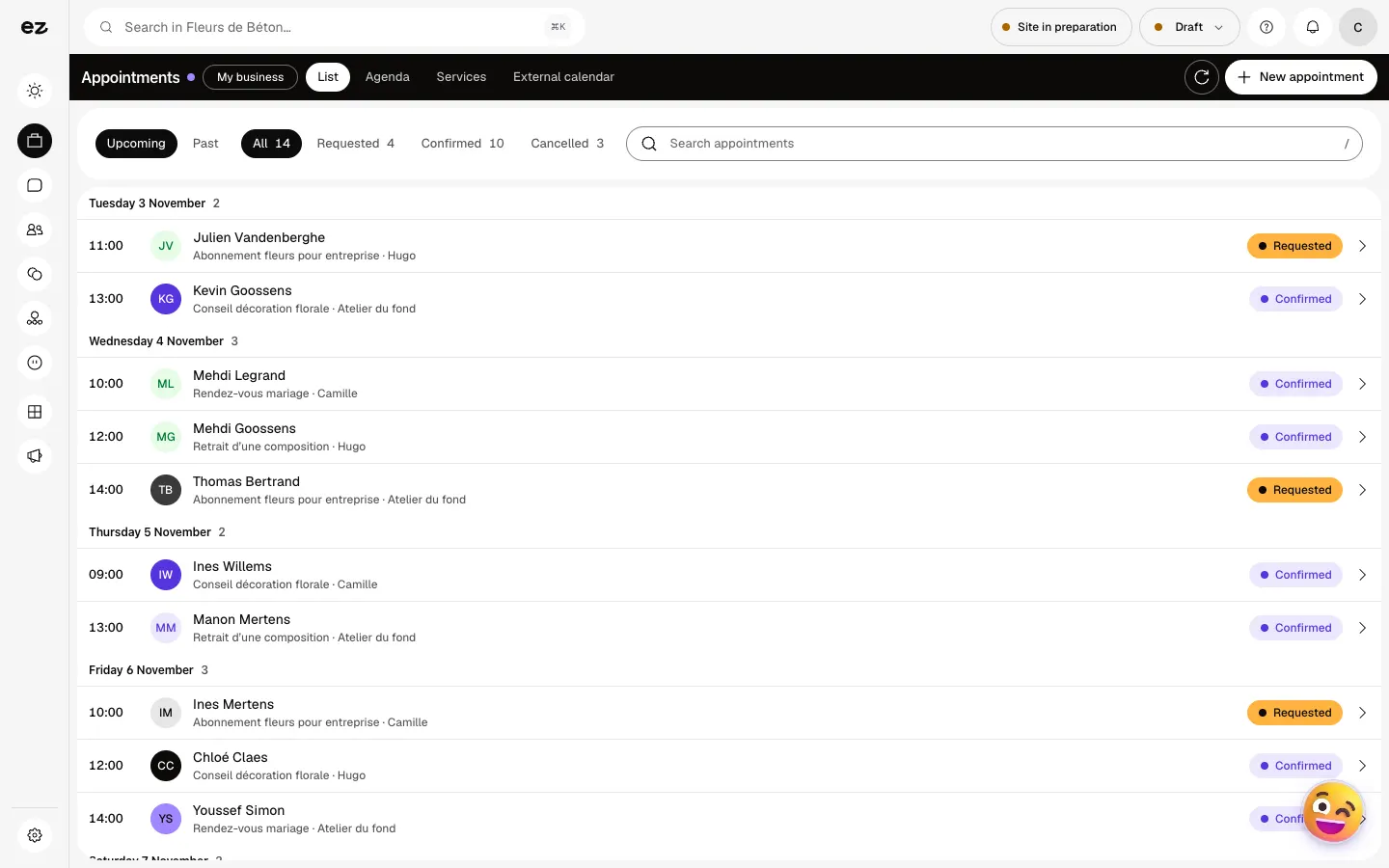
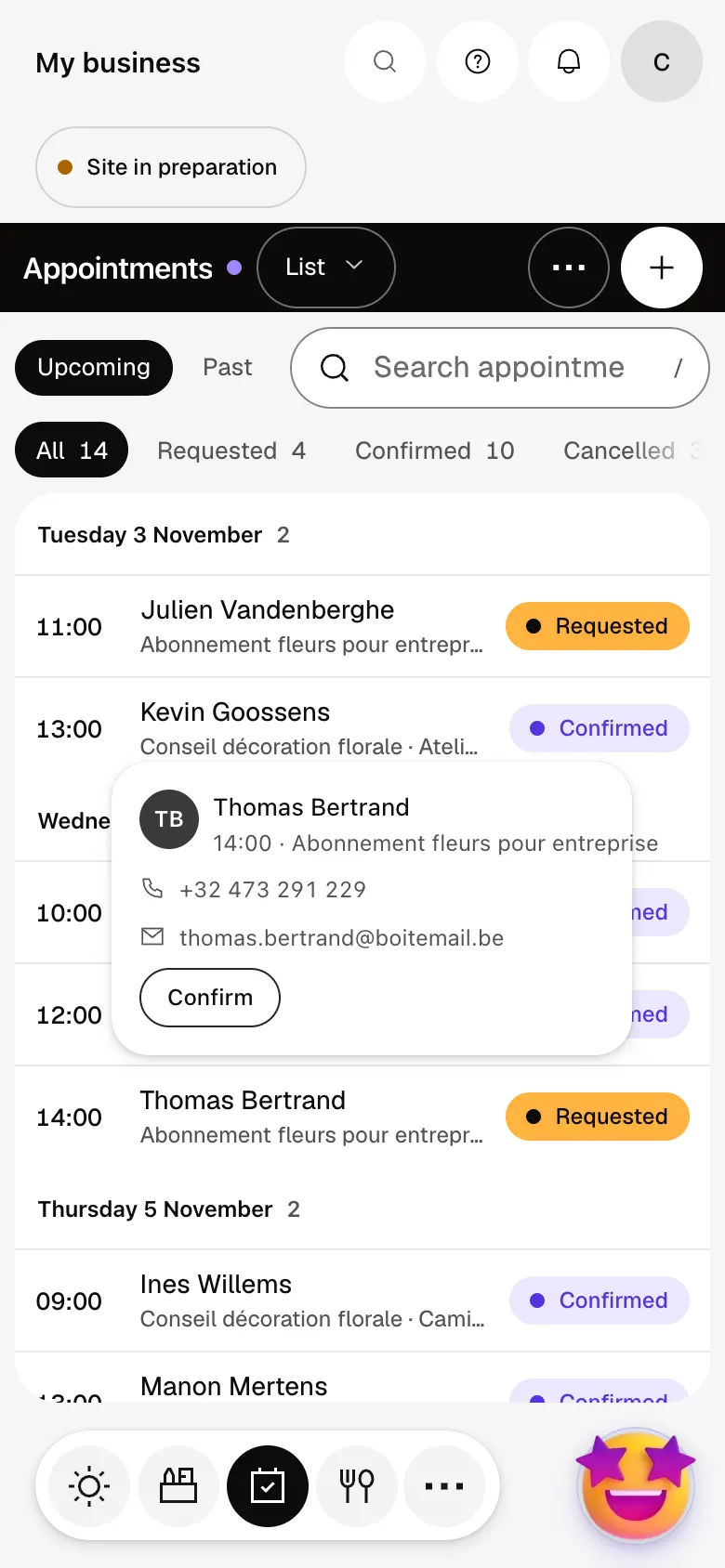
The customer books on your website or through the link, and the appointment lands in the List tab, sorted by day and status. Taken by phone or at the desk, “New appointment” creates it, confirmed right away.
What it looks like
The module in one minute
Transcript
Your customers book on their own: every appointment lands here, sorted by day. On one line: the time, the customer, the service and who sees them. Requests waiting for your answer are one gesture away, so nobody is left waiting. A call at the counter? Add the appointment yourself, it joins the list. Each appointment type has its length and its own booking page. Copy its link and share it: the customer picks a free slot. Your availability, day by day and for each team member. Connect your Google Calendar: your busy hours are no longer offered. The “?” at the top of every screen opens the module’s documentation.
Can I ask for a deposit?
Yes, per appointment type, as an amount or a percentage: “Deposit at booking”. It is paid online into your account, which needs an active payment method on your website. “New appointment” doesn’t ask for one.
Does each team member have their own calendar?
Yes, each person has their own availability and you choose who hosts each appointment type. With Team scheduling, their shifts feed their availability.
Can I add it during my free trial?
Yes. If it isn’t in your pack, turn it on in Eazyclick subscription, My plan, Your trial modules: it opens right away, until the end of the trial. To keep it, it must be in your Spark order. The module itself uses no credits.
How much does Bookings & appointments cost?
The price of Bookings & appointments is shown on the module page and on the Pricing page. Eazyclick subscription also shows what it adds to your subscription before you request it.


