What this module is for
Online bookings for your restaurant on your website: floor plan, waitlist, live service, card hold, several venues and reports, with no per-cover commission.
Getting started, step by step
- Step 1
Turn the module on
In Eazyclick OS, open Settings then Eazyclick subscription, Available modules tab, and click “Request activation” next to Booking Pro, or ask your project manager. During the trial, the list is in My plan, under “Add other modules”: a module marked “With Spark” opens when you move to Spark. Once active, the module shows up in the menu, with a “?” at the top of the screen that brings you back to this page.
- Step 2
Set your services
In the Reservations menu, open Settings then Services and click “New service”: days, hours, capacity and durations.
- Step 3
Draw the floor plan
In Settings, Floor plan, create your rooms and zones, then place your tables with their capacity. Tables can be combined for a large party.
- Step 4
Open bookings
In Settings, General, switch the status from Draft to Live: your website’s widget then offers the free slots. The Booking confirmation and reminders are set in Reminders and messages.
- Step 5
Run the service
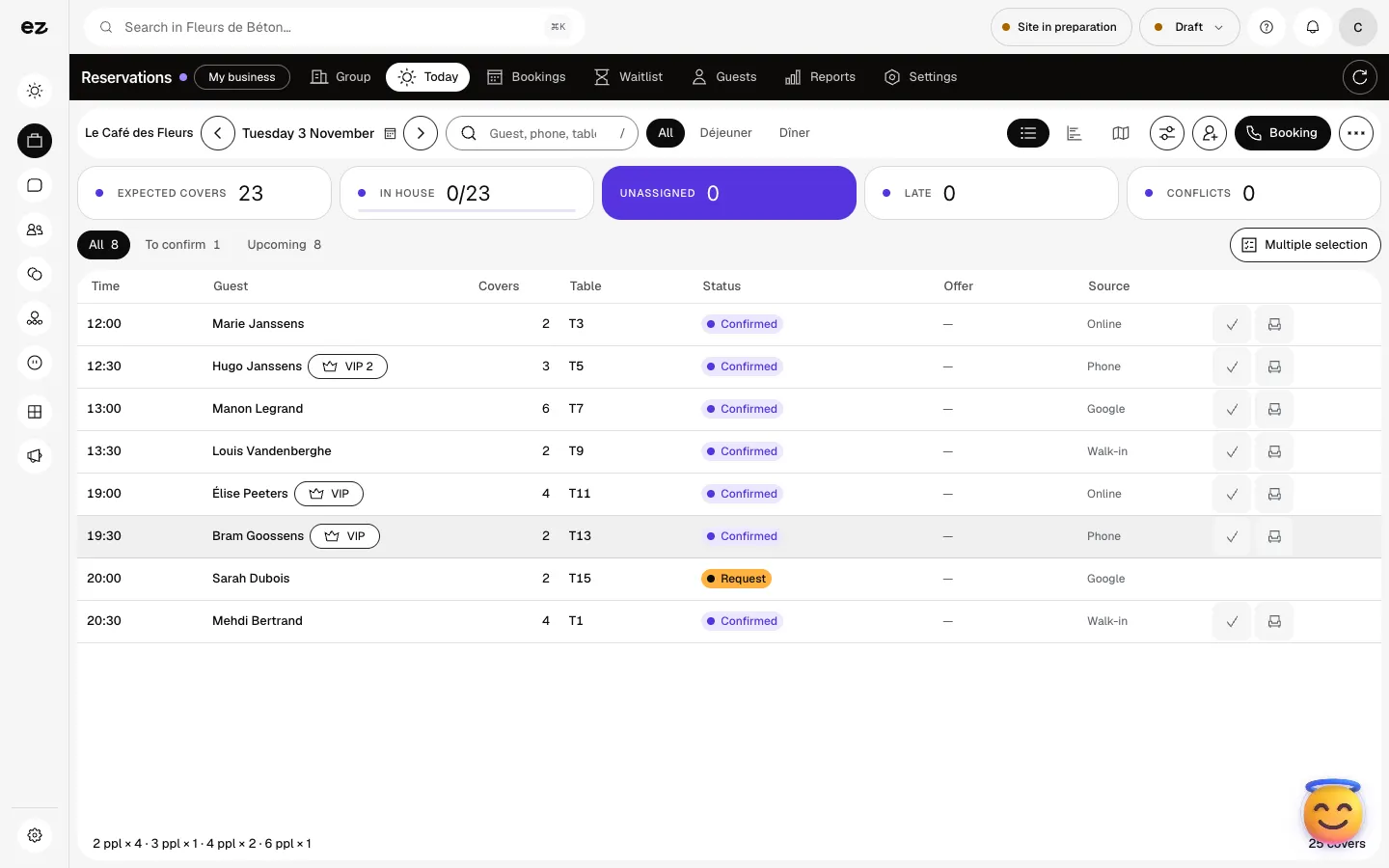
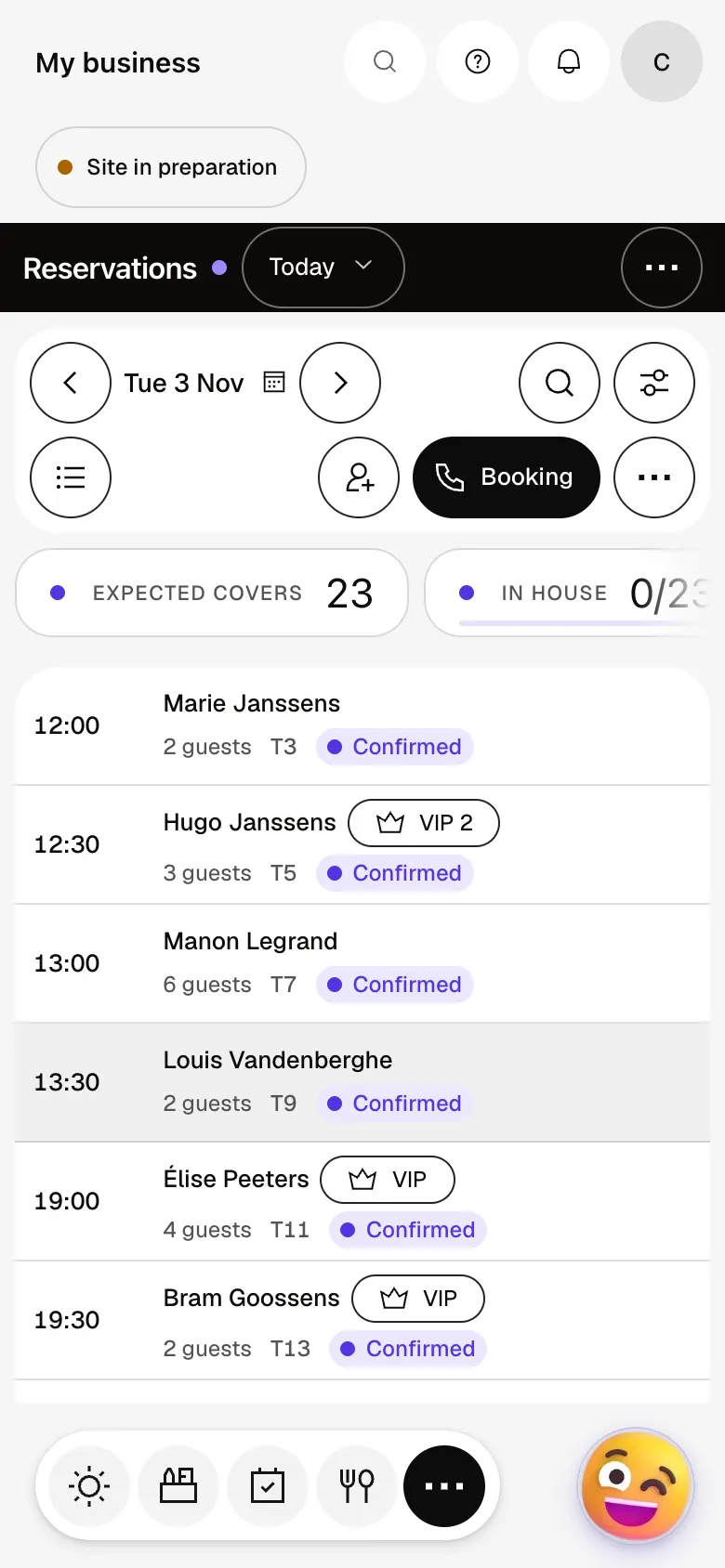
The Today tab counts expected covers, guests in house, unassigned tables and late arrivals, as a List, Timeline or Floor view. “Walk-in” seats a guest with no booking; the Waitlist follows those waiting.
What it looks like
The module in one minute
Transcript
Your service at a glance: who is coming, when and at which table. Covers expected, guests present, tables to assign, late arrivals: all counted for you. The status follows the guest, from the booking to the table being freed. A phone call or a walk-in? You seat them in a few seconds. Every booking of the week, with its service and number of covers. The address book fills itself: visits, regulars, VIPs. An allergy, a favourite table: the team sees it before the guest arrives. Reports show where your guests come from and how many seats stay empty. The “?” at the top of every screen opens the module’s documentation.
Is there a per-cover commission?
No, Eazyclick takes no per-cover commission. If you ask for a deposit, only your payment provider’s fees apply.
Can I refuse bookings beyond capacity?
Yes: a full slot is no longer offered. Guests can join the waitlist from the widget or the venue’s QR code, and your team can add a party to it.
How does it differ from Table bookings?
Table bookings, the module of the Restaurant, Brasserie and Bar packs, handles your services and the requests you accept or decline. Booking Pro adds the floor plan, card hold, till, several venues, private events and reports.
Can I turn it on myself, or during my free trial?
No: Booking Pro isn’t in Available modules and can’t be added to the trial. It is a paid option, turned on by your project manager, and the module then appears as Reservations. It uses no credits itself.
How much does Booking Pro cost?
The price of Booking Pro is shown on the module page and on the Pricing page. Eazyclick subscription also shows what it adds to your subscription before you request it.


