What this module is for
Agents do your repetitive tasks at the time you choose: morning summary, post idea, appointments overview, contacts to follow up. Nothing is written or sent without your consent.
Getting started, step by step
- Step 1
Turn the module on
In Eazyclick OS, open Settings then Eazyclick subscription, Available modules tab, and click “Request activation” next to Agents & automation, or ask your project manager. During the trial, the list is in My plan, under “Add other modules”: a module marked “With Spark” opens when you move to Spark. Once active, the module shows up in the menu, with a “?” at the top of the screen that brings you back to this page.
- Step 2
Set up your agents
Open AI assistants then AI agents. “Set up the default agents” creates a ready-made team, and “New agent” adds one with your instructions. You can talk to each one in its conversation.
- Step 3
Create an automation
Open Automations and start from a template or from “Create an automation”. Choose the frequency (every day, some days of the week, every month, at regular intervals), the agent and its instruction. “Run now” starts it right away.
- Step 4
Approve what it prepares
What an agent wants to write or send waits in “To approve”. You approve or refuse it; nothing goes out before that. The history keeps every run and its outcome.
- Step 5
Watch your usage
Usage shows the runs counted this month, what is left and the detail per automation.
What it looks like
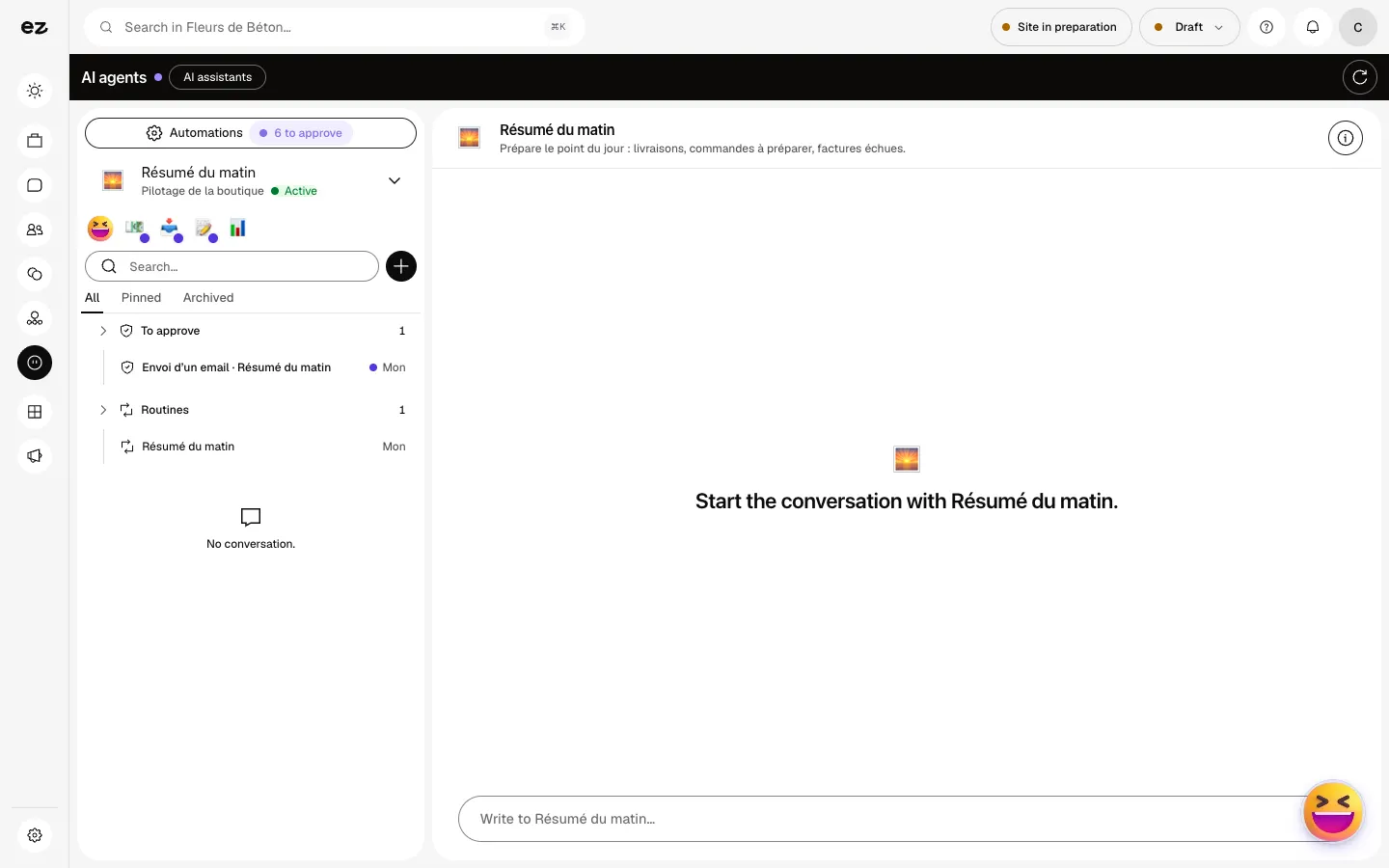
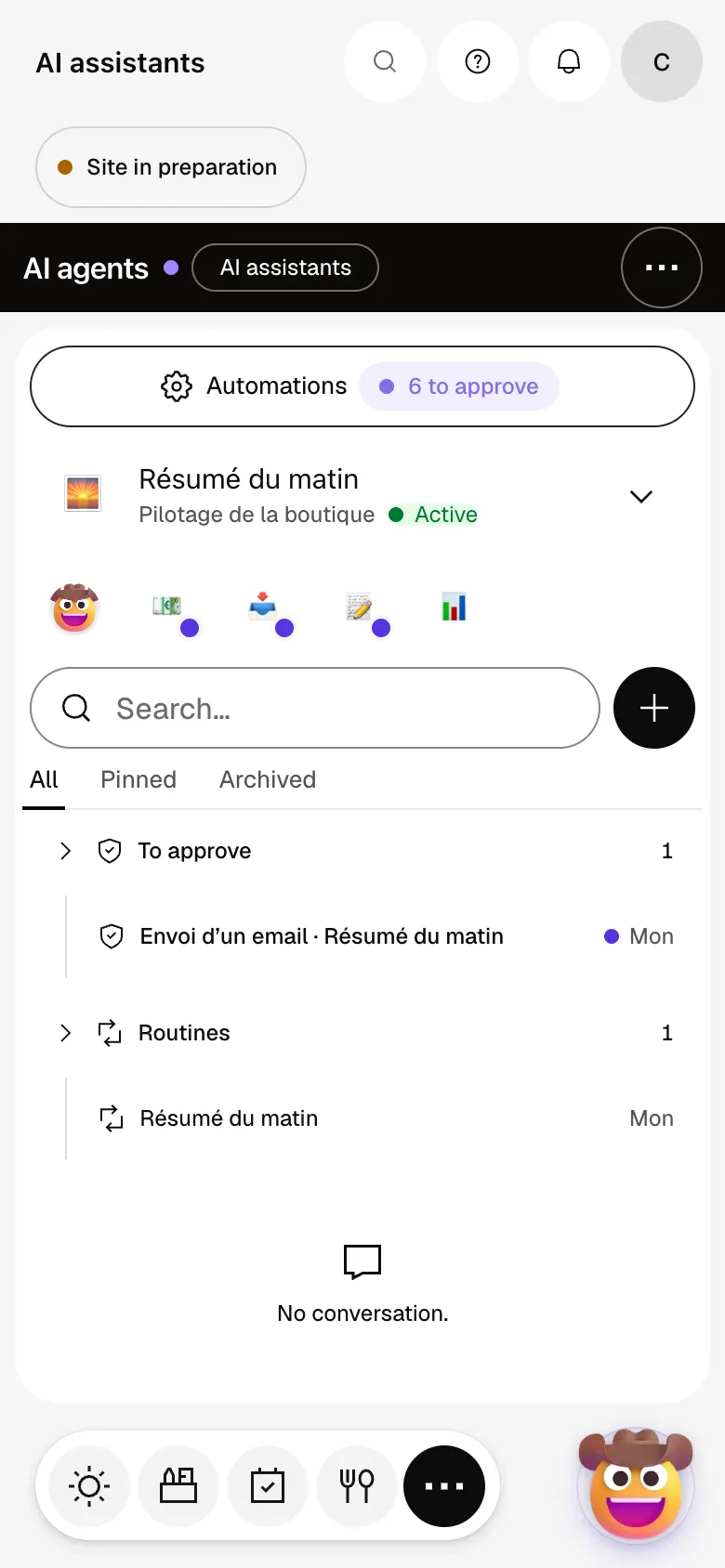
The module in one minute
Transcript
Your agents prepare the repetitive work, and nothing goes out without your approval. Here, “Résumé du matin” has drafted an email to a customer and awaits your decision. You read the message as written, then approve or reject it. All pending actions are here: reminders, emails, records to update. Routines run on their own: morning summary, invoice reminders, sorting requests. The history shows what each agent did, and when. Usage tracks this month’s runs, so you stay in control. The “?” at the top of every screen opens the module’s documentation.
Can an agent send without me?
No: an assistant never writes or sends anything without your consent. The action waits in “To approve”.
Can an automation start when a request comes in?
No. It runs on its schedule, or when you start it. The shortest interval is one minute.
Do agents use credits?
No: every run counts towards a monthly quota, shown in Usage. A refused run doesn’t count. When the quota is reached, runs stop until the next month.
Can I try it during the 14 days?
No. During the trial, Agents & automation stays marked “With Spark” in the list of modules. It opens with Spark, as an option.
How much does Agents & automation cost?
The price of Agents & automation is shown on the module page and on the Pricing page. Eazyclick subscription also shows what it adds to your subscription before you request it.


